Now let’s learn how to work with forms.
A form is a special block on a page that can contain various input fields, drop-down lists, checkboxes, and other unknown things. It can be used for two things:
- any complex search with a bunch of conditions
- to create objects
Now let’s look at forms in terms of implementing a complex filter.
So, let’s make a page for searching our database. We will need SearchController
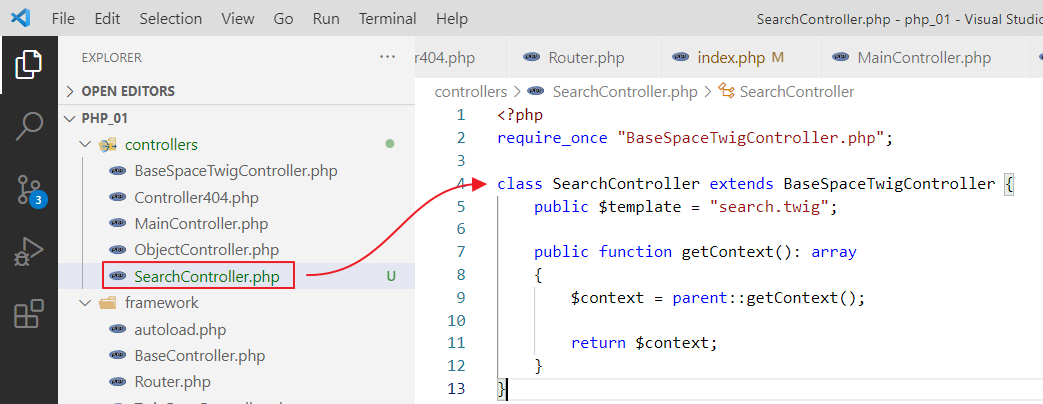
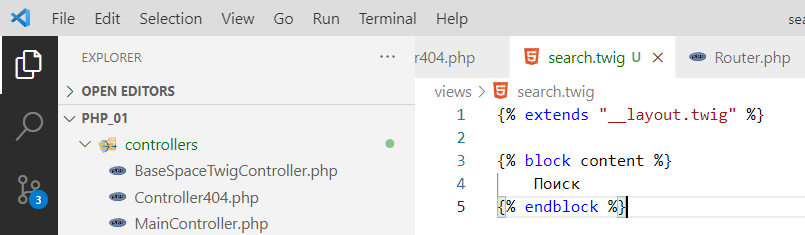
and a template:
We will also link it in index.php
$router->add("/search", SearchController::class);
and add a link to the navigation bar
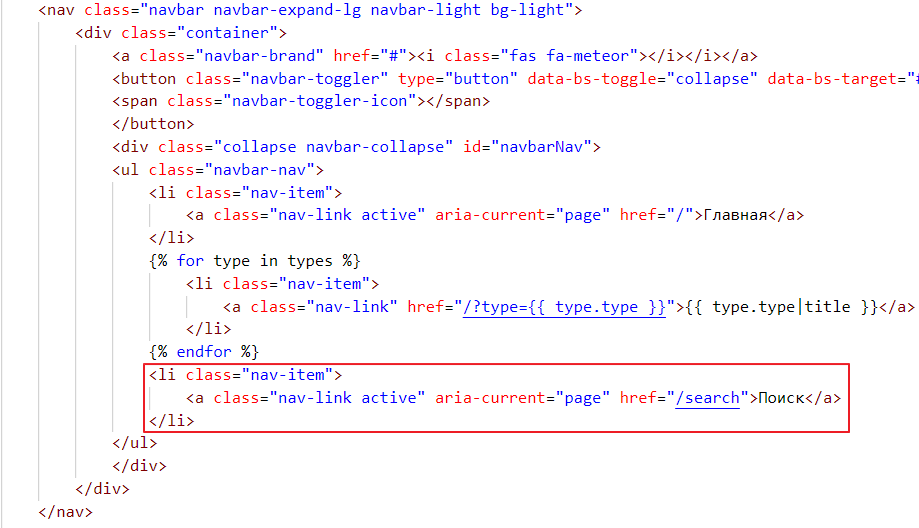
check
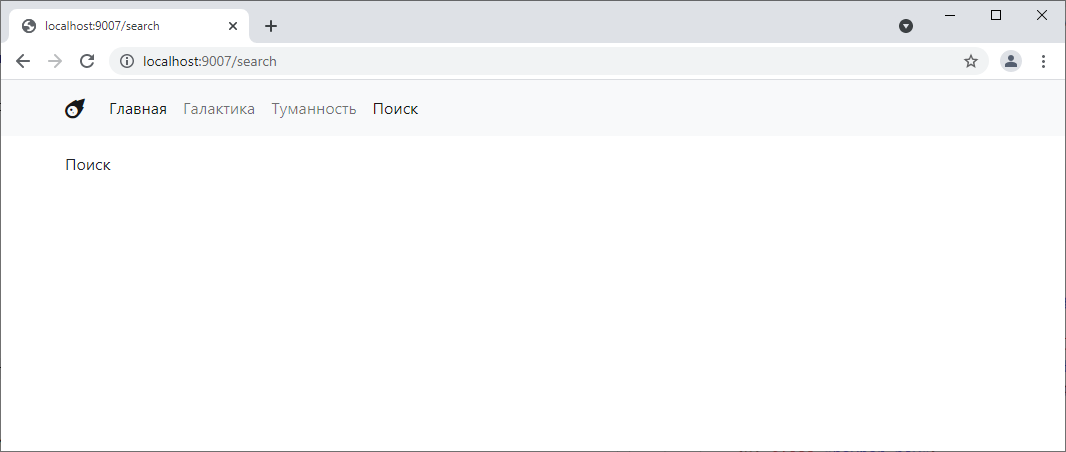
Woo-hoo! =)
Adding search by type
Let’s start with what we’ve already done, searching by type. Last time, we basically just created links for filtering by type and did it manually. We added parameters there using a question mark, and that was it…
But now we’re going to take a different approach. We’ll create a form with a drop-down list and a search button.
Go to search.twig and write there:
{% extends "__layout.twig" %}

{% block content %}
    Search

    <form action="">
        <select name="type">
            <option value="galaxy">Galaxy</option>
            <option value="nebula">Nebula</option>
        </select>

        <button type="submit">Find</button>
    </form>

{% endblock %}
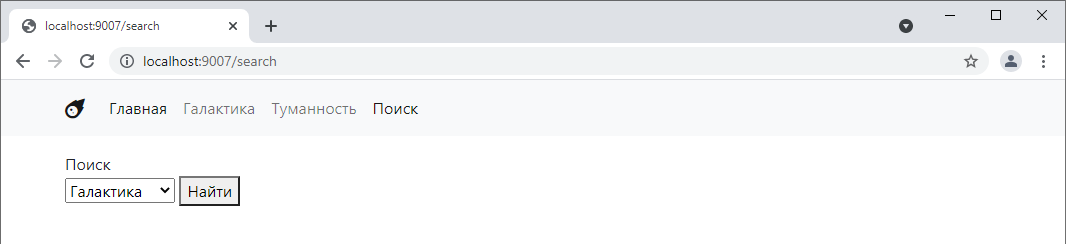
Let’s see how it looks:
Now let’s try switching the menu item and clicking “Find.”
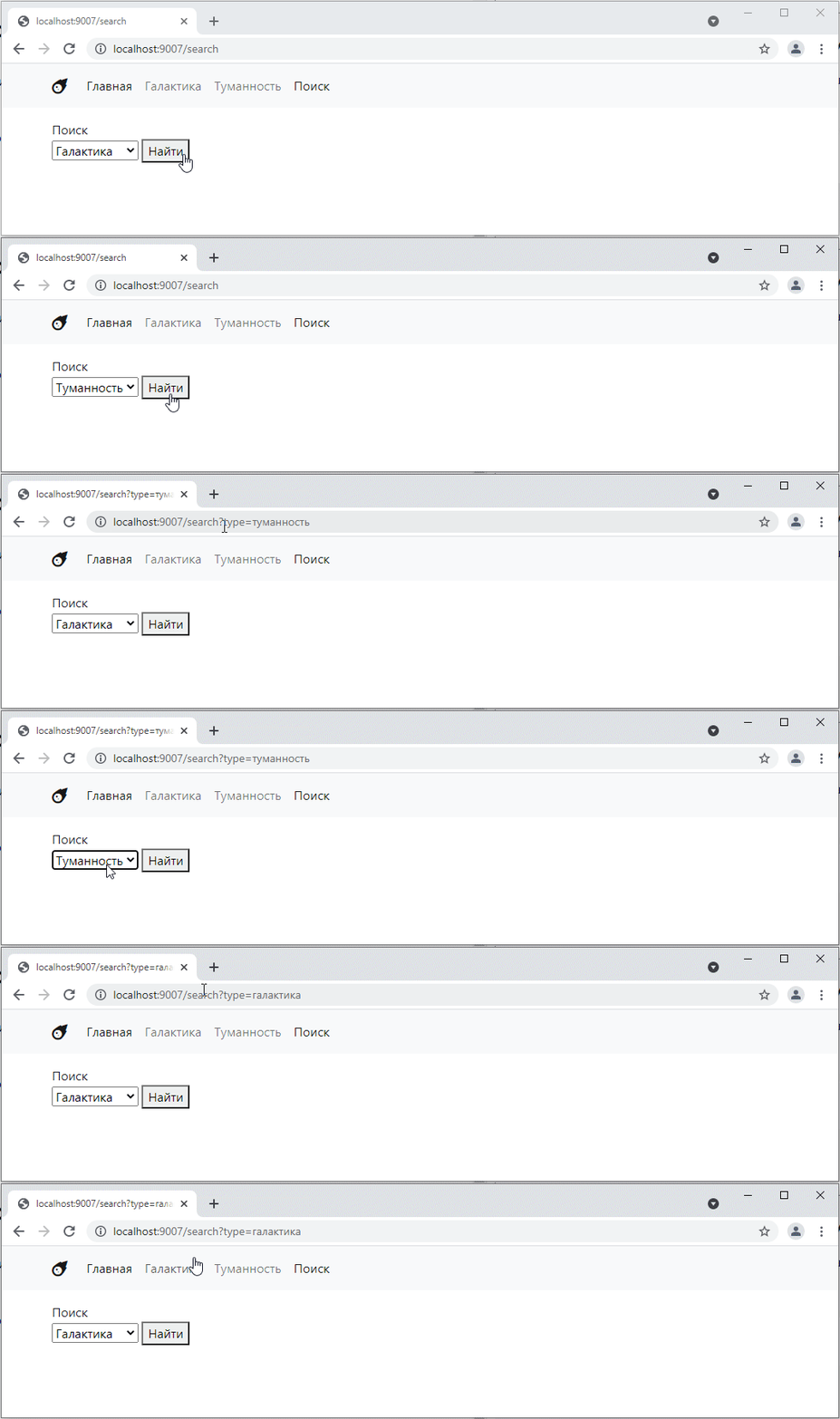
OOH!! As you can see, when we click the button, the page reloads, and the value selected on the form is passed to the get parameters. This means we no longer need to write anything manually =O
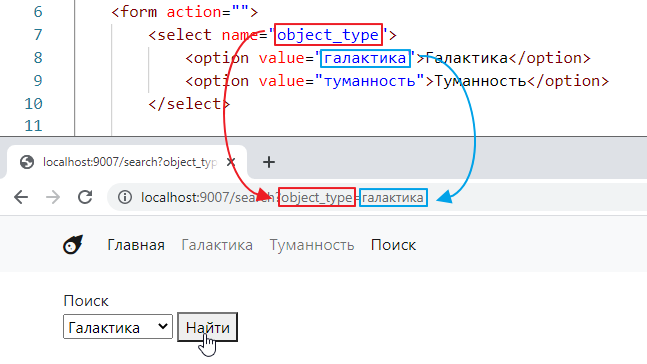
By the way, if we specify, for example, not type in the select name, but some other word, such as object_type, then it will be used as the key in the get parameter. Well, the value attribute from the selected option tag will be used as the value.
Adding a search by name
Let’s add another field to our form, for example, to search by name
<form action="">
    <select name="object_type">
        <option value="galaxy">Galaxy</option>
        <option value="nebula">Nebula</option>
    </select>
    <label>Name <input type="text" name="title"></label>

    <button type="submit">Find</button>
</form>
Let’s test it.
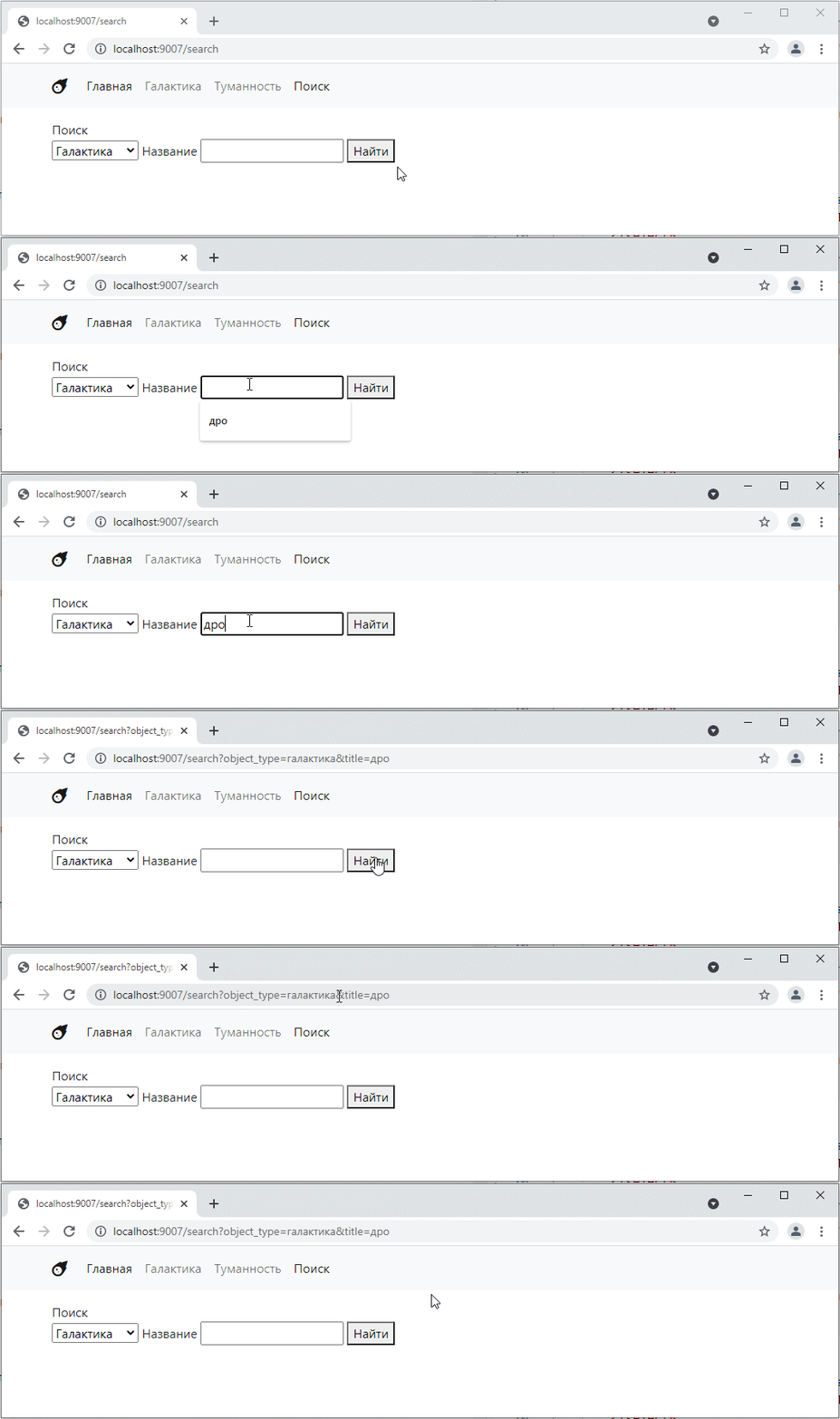
That is, if we have several fields, they are combined in the parameters at the top using the ampersand symbol.
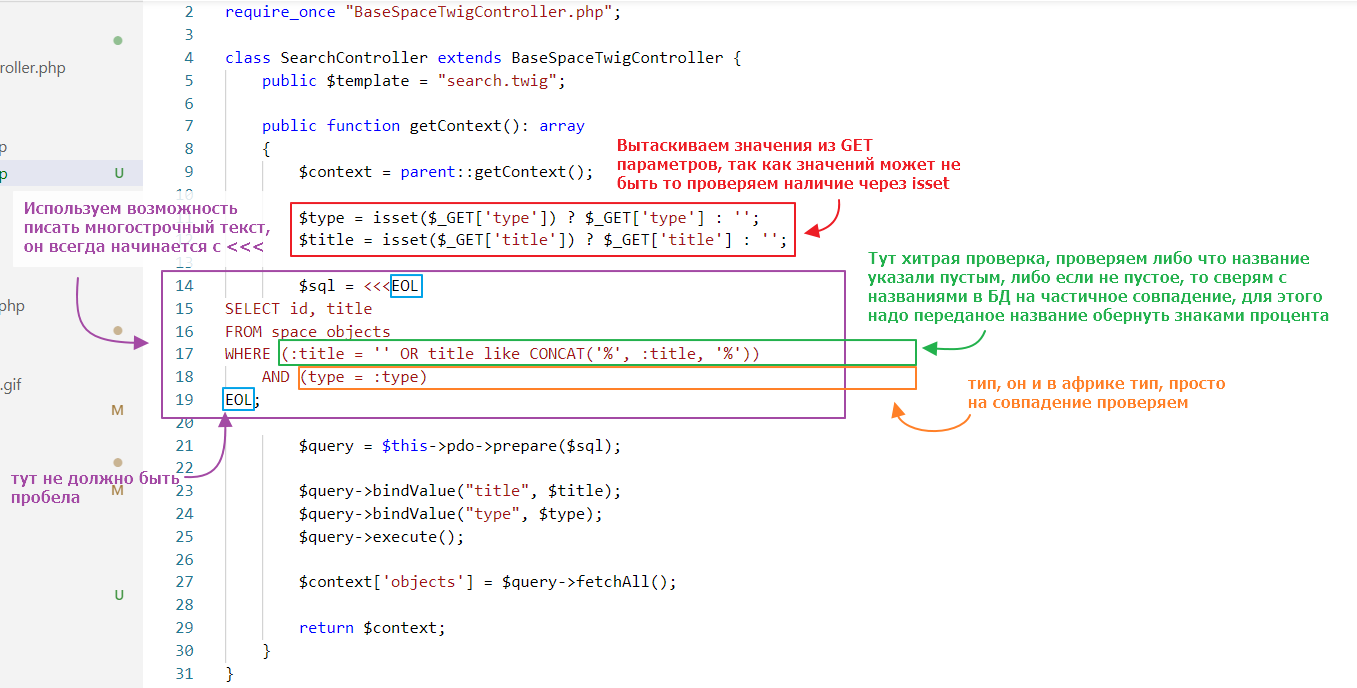
In general, I think the principle is clear. Now let’s refine it so that our search starts working properly and displays a list of links to objects that meet the condition.
It’s a little complicated, but I think you can figure it out:
Let’s see how it works:
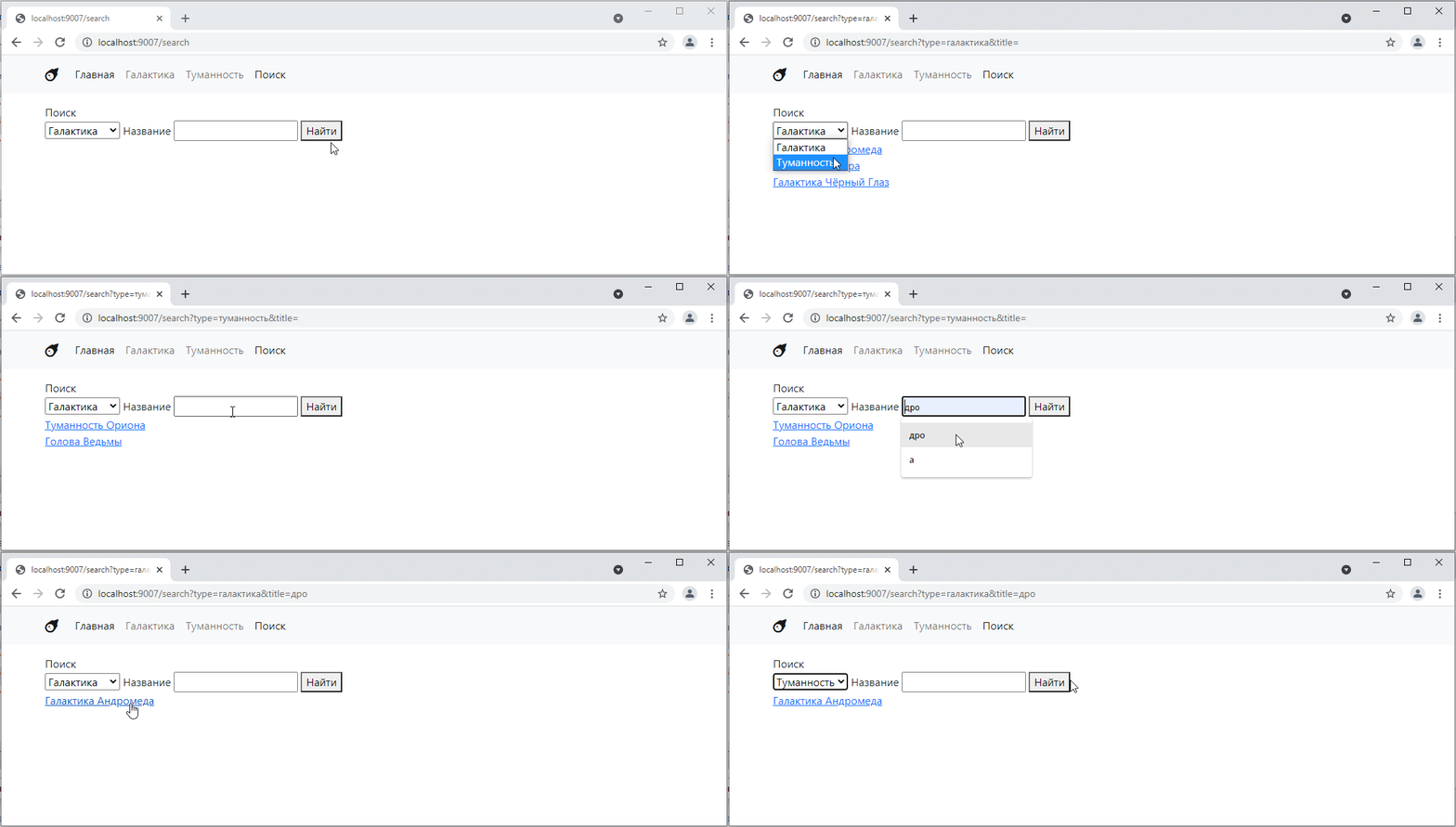
Hooray! =)
Task
To be completed:
- Add a filter for the full description.
- Add the type “All” to the list of types, for which filtering by type will not occur.
- Design the form using Bootstrap (https://getbootstrap.com/docs/5.0/forms/layout/#gutters).
- Add a numeric field to the model and add a filter for it [optional]
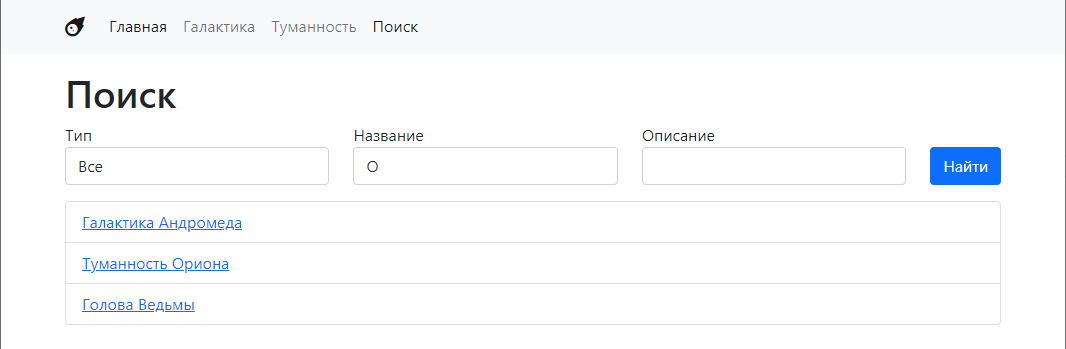
Something like this: