- Add a table to the database that will store possible object types. The table must have at least three fields: id, name, and image.
- Add a page from which new object types can be added.
- In the navigation, as well as when adding new objects to the list, display values from this table.
Finally, we have arrived at POST requests. Unlike GET requests, whose information (key-values) is visible in the address bar, POST request data is encrypted in the request body.
Also, POST request data does not appear in the nginx server logs. This reduces the likelihood of a potential attacker obtaining the data. GET requests, on the other hand, are visible in the logs in their raw form.
For example, you can look at the nginx log in Laragon like this:
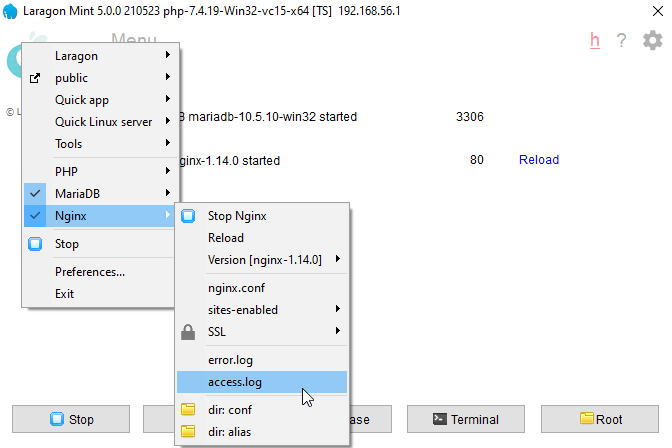
and see the requests we made when we used the search function:
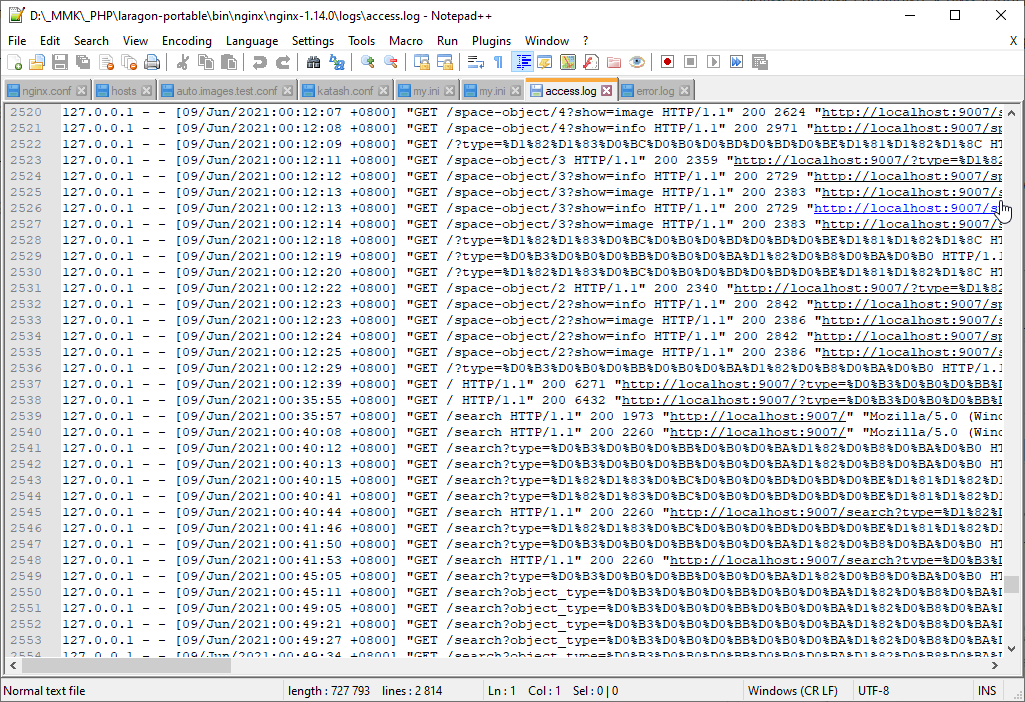
There are also restrictions on the length of the address string. Therefore, it is not possible to send long data via GET requests.
That is why POST requests were invented for transferring large amounts of data. They allow you to transfer virtually unlimited amounts of data in encrypted form.
And we will use them specifically to create new entities in the database.
Creating a controller
So, let’s create a new controller and call it SpaceObjectCreateController
<?php
require_once "BaseSpaceTwigController.php";

class SpaceObjectCreateController extends BaseSpaceTwigController {
    public $template = "space_object_create.twig";
}
Let’s create a form for it in the template where we can write all the fields (without images for now)
{% extends "__layout.twig" %}

{% block content %}
    <h1>Adding a deep space object</h1>
    <hr>

    <form class="row g-3">
        <div class="col-4">
            <label class="form-label">Title</label>
            <input type="text" class="form-control" name="title">
        </div>
        <div class="col-4">
            <label class="form-label">Short description</label>
            <input type="text" class="form-control" name="description">
        </div>
        <div class="col-4">
            <label class="form-label">Type</label>
            <select class="form-control" name="type">
                <option value="galaxy">Galaxy</option>
                <option value="nebula">Nebula</option>
            </select>
        </div>
        <div class="col-12">
            <textarea name="info" placeholder="Full description..." class="form-control" rows="5"></textarea>
        </div>
        <div class="col-12 text-end">
            <button type="submit" class="btn btn-primary">Add</button>
        </div>
    </form>

{% endblock %}
It will turn out like this:
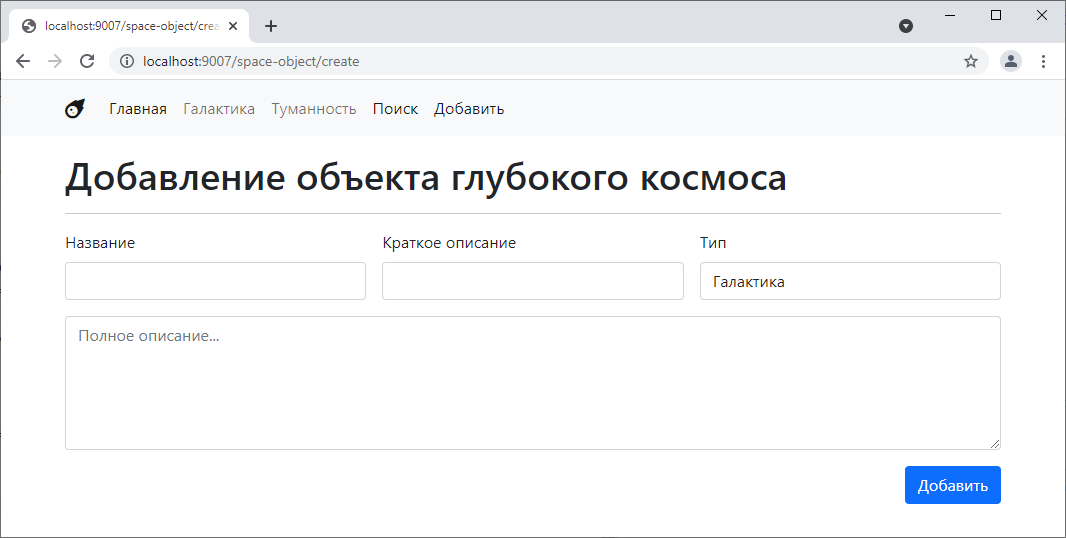
You can try arranging it differently. Add some colors. In general, make it more fun.
Let’s add it to the router
$router->add("/space-object/create", SpaceObjectCreateController::class);
and a link to the navigation
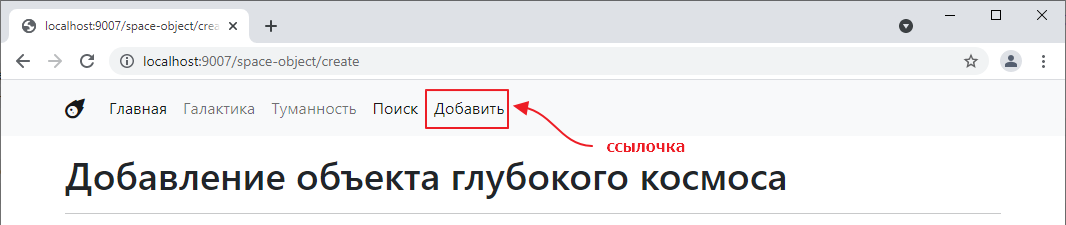
Processing the post request
Let’s try filling in the fields and clicking the Add button:
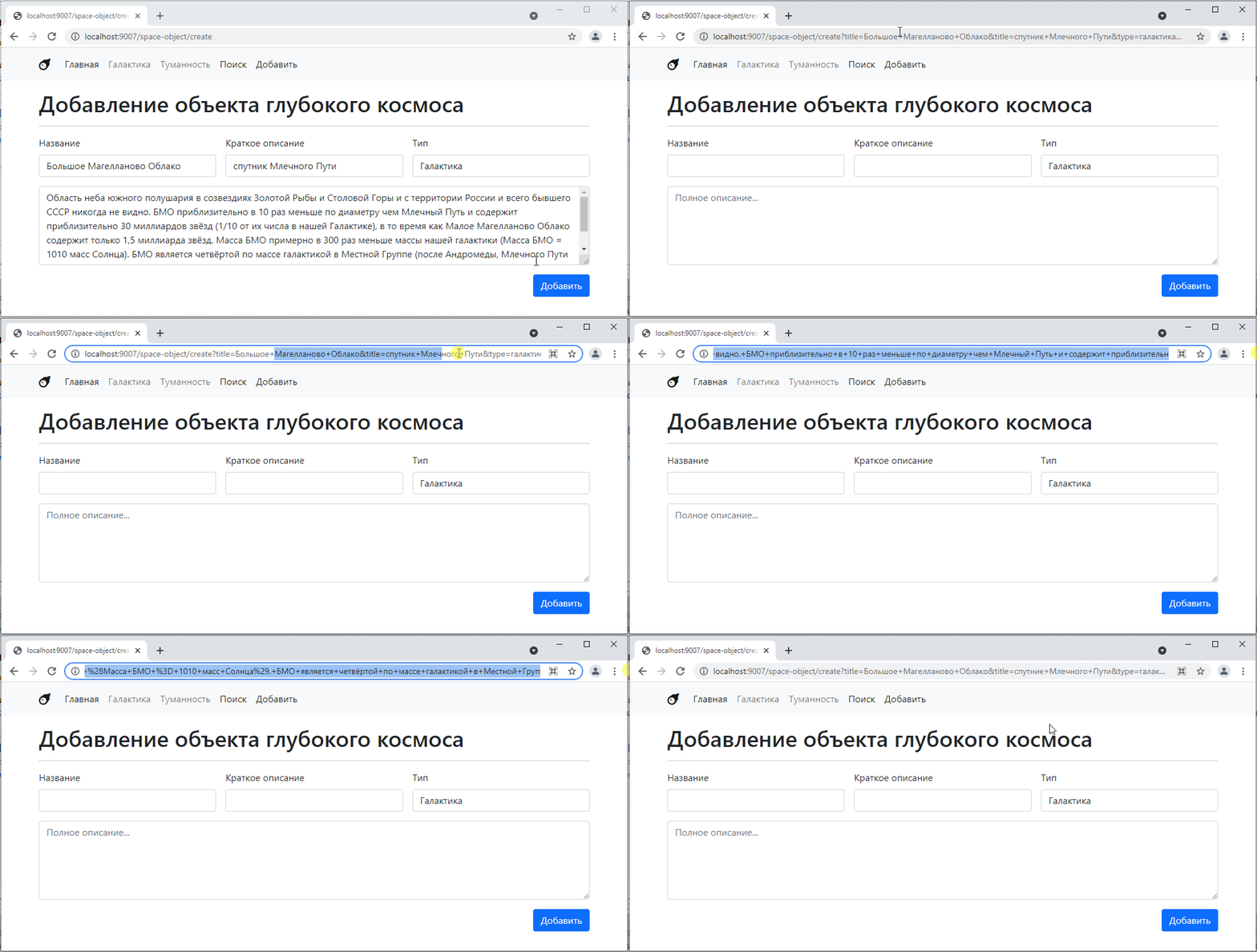
As we saw in the previous task, clicking the button reloads the page, and the values from the form are passed to the parameters.
This is standard form behavior. In fact, we can specify a transition to another page. To do this, we need to change the action attribute of the form tag. For example, after creating an object, it often makes sense to go to a page with a complete list of objects. We can do this as follows:
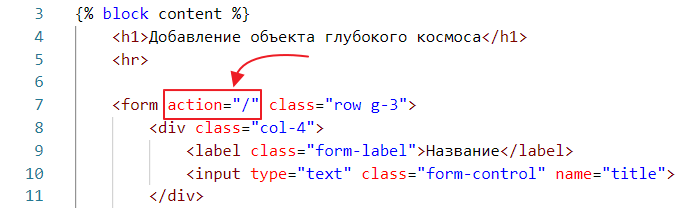
Let’s try again:
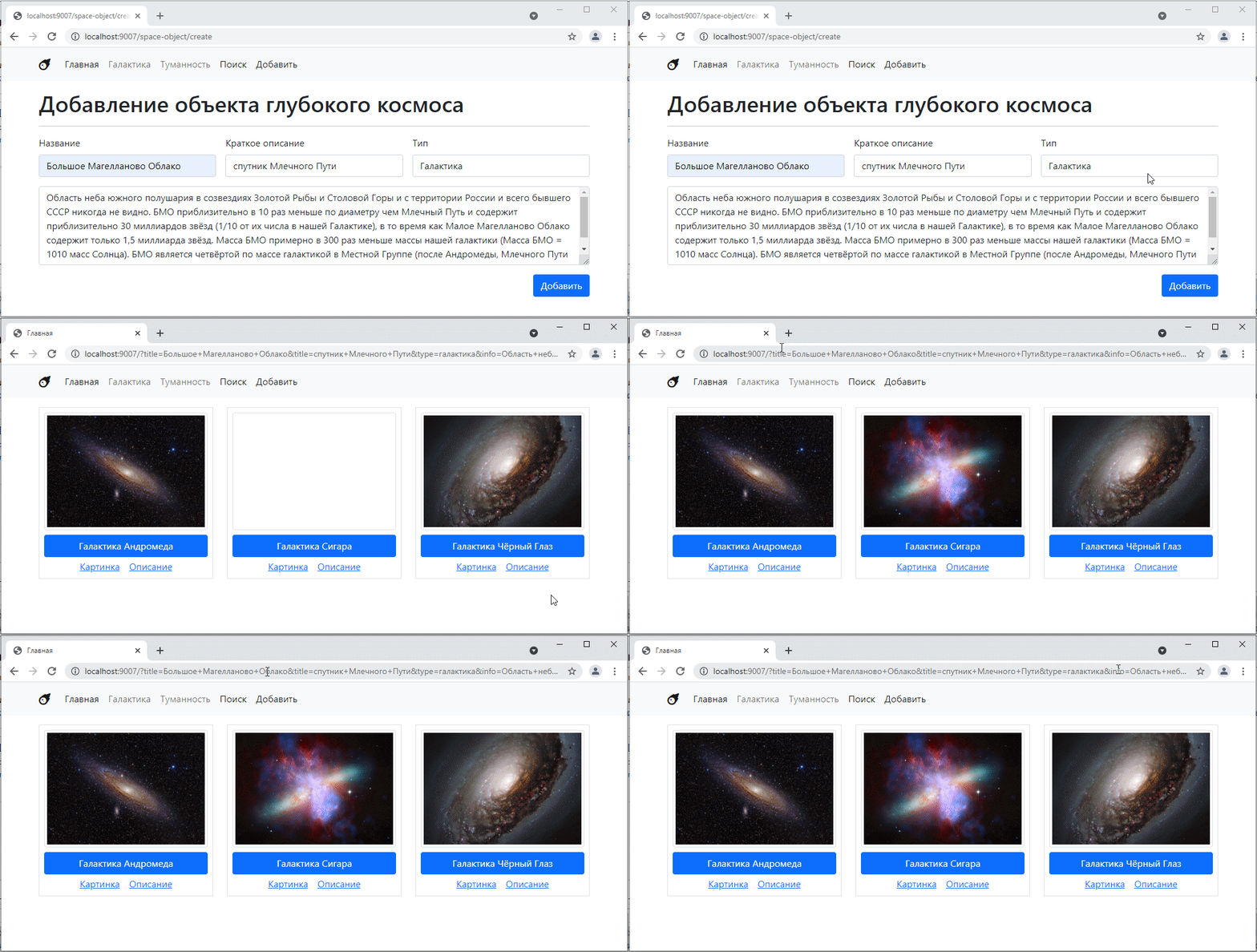
By the way, we have added processing of the type parameter on the main page, so the attempt to create an object currently works as a filter.
In general, this is not exactly what we want. So let’s leave the action attribute empty:
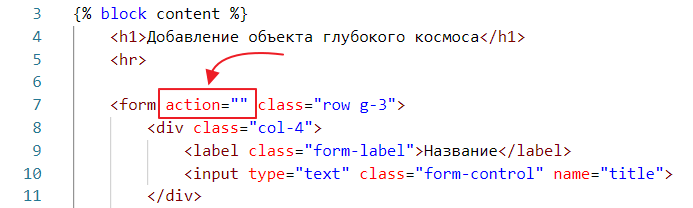
An empty attribute is equivalent to no attribute.
So, I want to implement the following behavior: when I click the add button, I want to stay on the same page, but I want to see a message there saying that the object has been saved.
Plus, I don’t want any data to be visible in the address bar.
Why is it so important that random data does not end up in the address bar?
The thing is, in a real application, it may not only contain harmless data such as names or descriptions, but also passwords in plain text, phone numbers, various secret tokens, etc. And all this data then ends up in the browser history, where it can be viewed if desired.
We will use a POST request for this very purpose.
In order for the form to send a POST request when the button is clicked, the form tag must have the method attribute added to it.
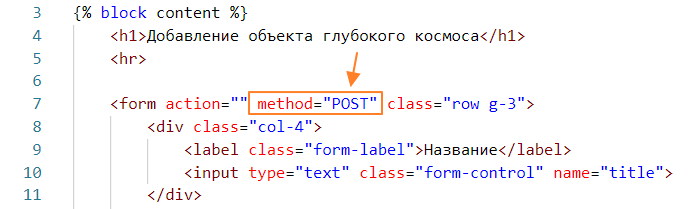
Let’s try sending the form now:
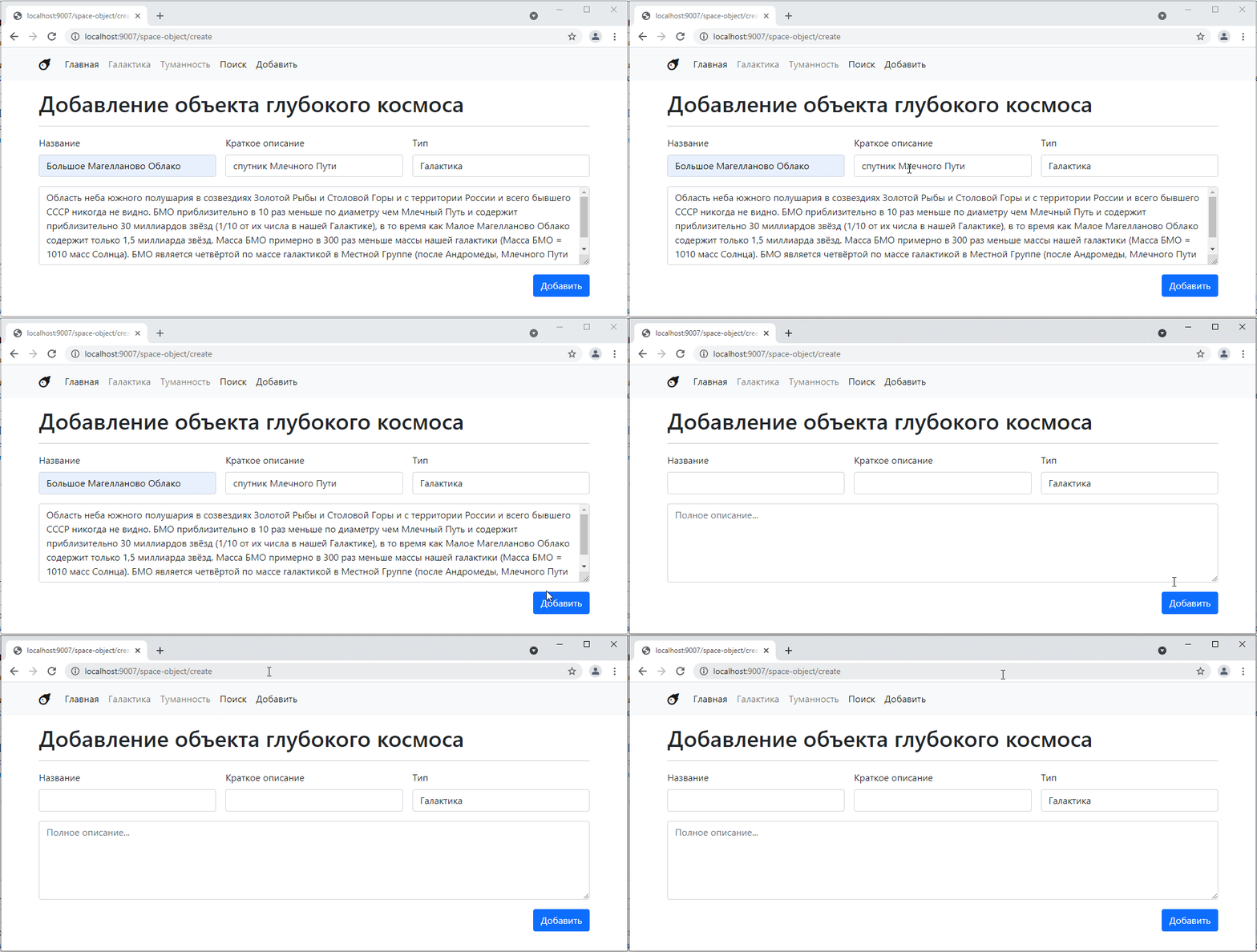
It looks like nothing happened. But in fact, the SpaceObjectCreateController controller was called, only the method was POST instead of GET.
You can see this in the console (F12 or Ctrl+Shift+I)
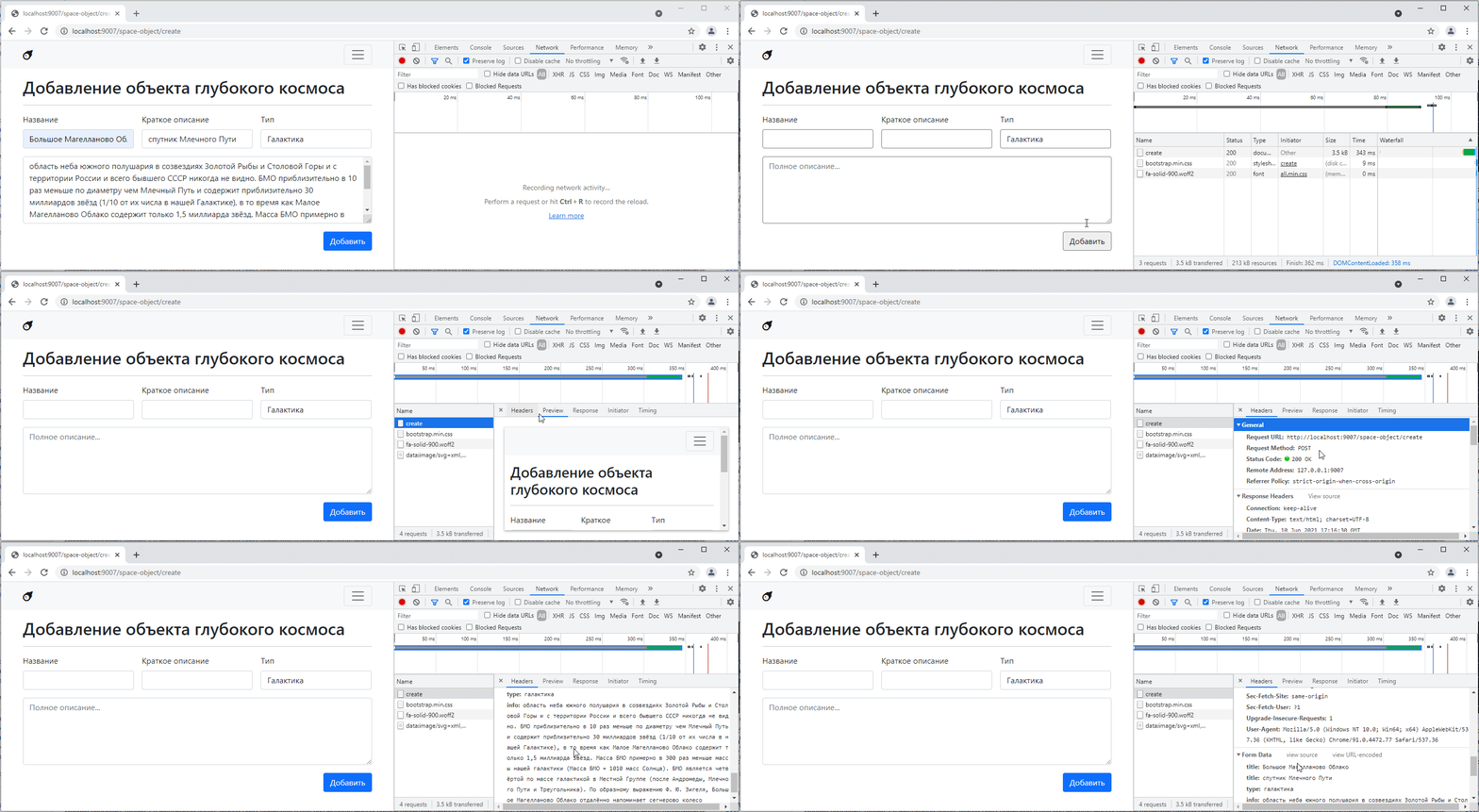
That is, you can see both the request method and its parameters here.
It is important to understand that whenever you manually type a URL into the address bar of your browser, a GET request is sent. In response, the content of the page is returned as a result of this request.
When you click the button with type=submit on a form that has “POST” specified in the method, a POST request is sent. In response, the content of the page is returned as the result of this request.
Since our controllers are currently unable to distinguish between POST and GET requests, the result of submitting the form is identical to the response when opening the page for adding an object.
Let’s teach our controller to distinguish between different types of requests.
First, we need to understand how to determine the type of request. To do this, we can use the REQUEST_METHOD key in the global $_SERVER object. Let’s try to output it:
class SpaceObjectCreateController extends BaseSpaceTwigController {
    public $template = "space_object_create.twig";

    public function get()
    {
        echo $_SERVER["REQUEST_METHOD"];

        parent::get();
    }
}
Let’s test it:
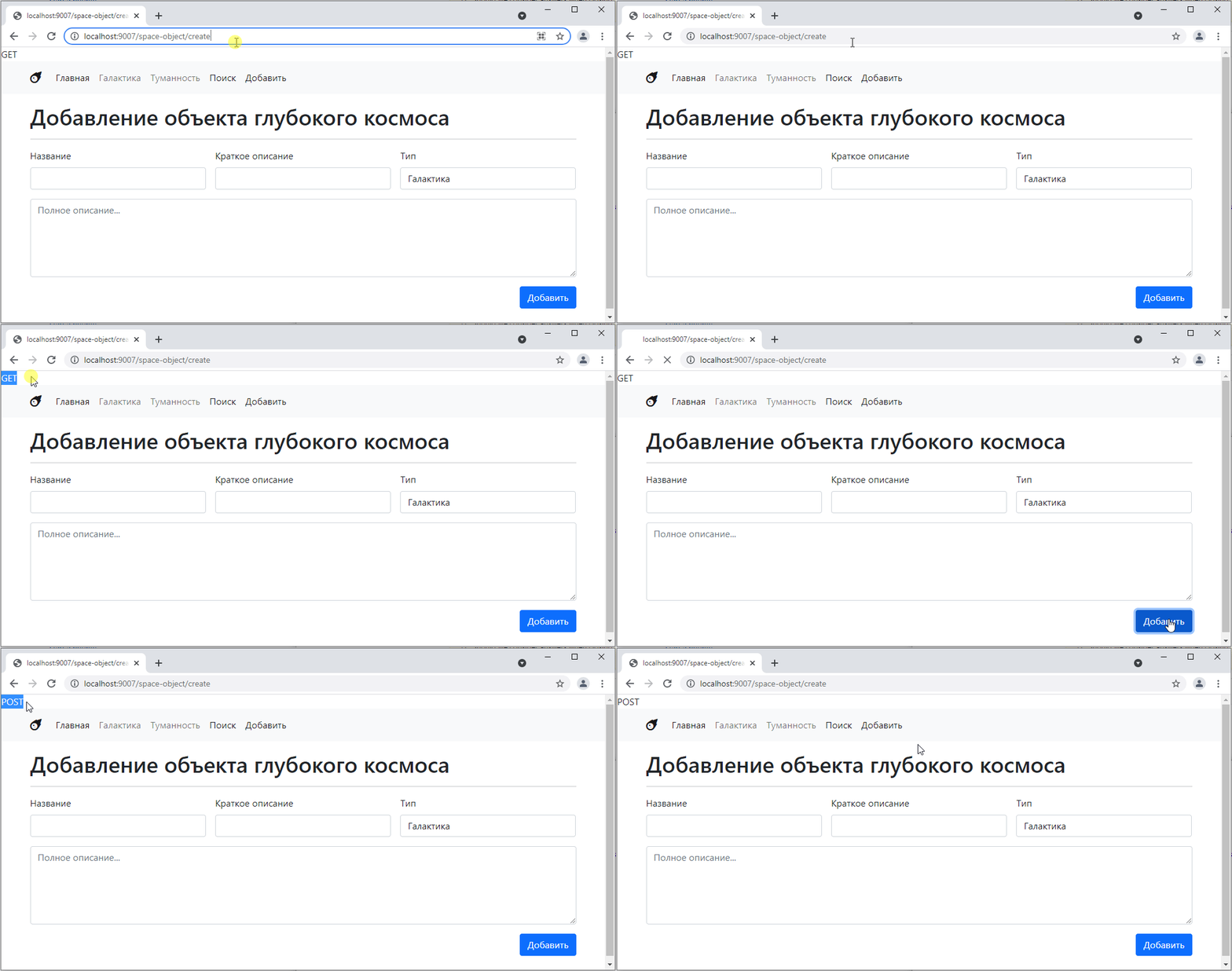
Not bad, in principle. But it turns out that regardless of the request type, we end up in the get function, which outputs the request type.
It would probably be nice to have a separate get method and a separate post method for different request types.
Go to BaseController and add the process_response method there
abstract class BaseController {
    // ...

    // new function
    public function process_response() {
        $method = $_SERVER["REQUEST_METHOD"]; // extract the method
        if ($method == "GET") { // if it's a GET request, call get
            $this->get();
        } else if ($method == "POST") { // if it's a POST request, call get
            $this->post();
        }
    }

    // remove abstract here, and just make two empty methods for get and post requests
    public function get() {}
    public function post() {}
}
Now go to Router.php and change the controller’s get method call to process_response
class Router {
    // ...

    public function get_or_default($default_controller) {
        // ...

        return $controllerInstance->process_response(); // now we have process_response instead of get
    }
}
Now let’s try to call our form.
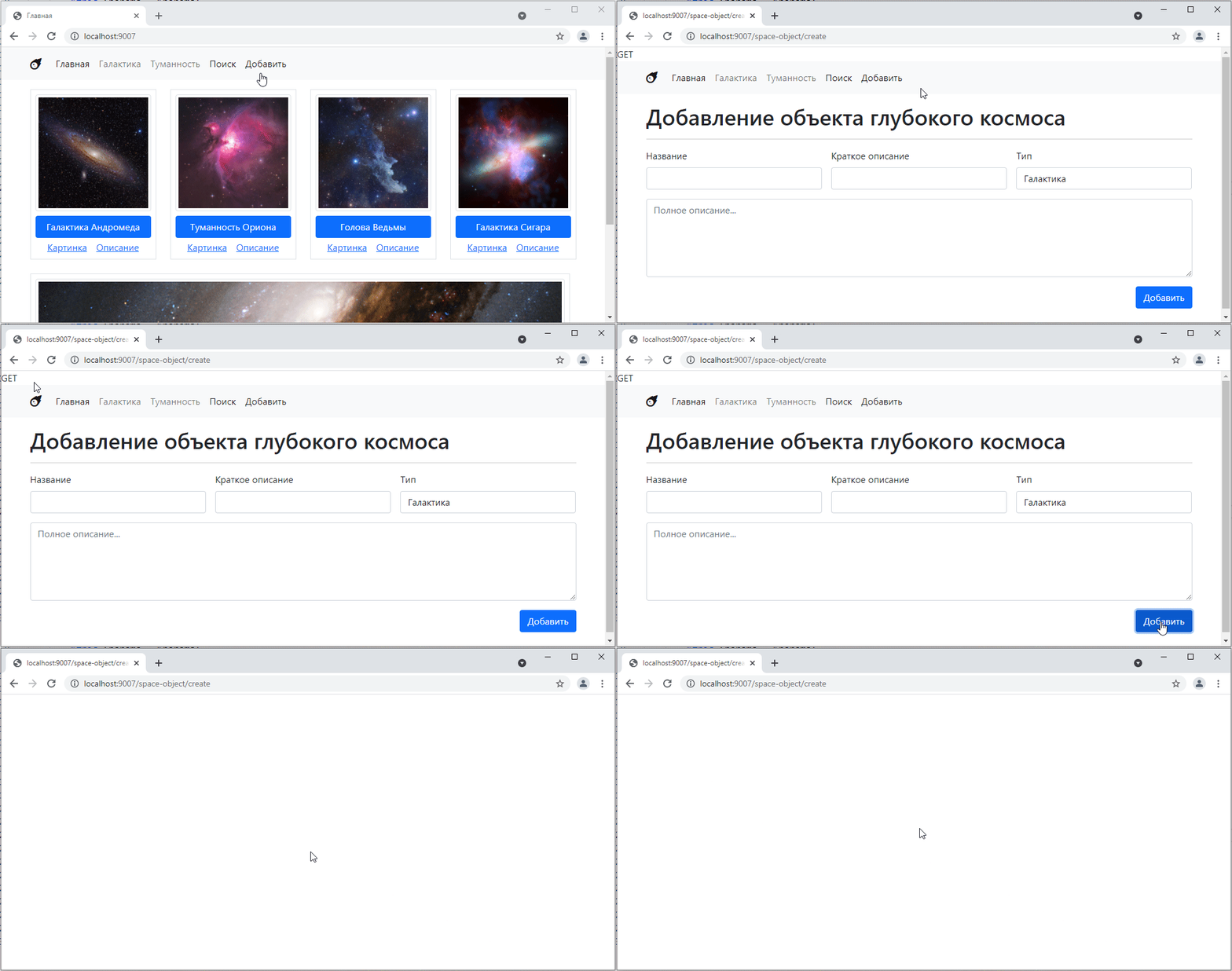
Since we don’t have a handler for the post method, it shows a blank page.
I can, for example, make the post method simply call the get method, like this:
class SpaceObjectCreateController extends BaseSpaceTwigController {
    public $template = "space_object_create.twig";

    public function get()
    {
        echo $_SERVER["REQUEST_METHOD"];

        parent::get();
    }

    // added
    public function post() {
        $this->get(); // call get
    }
}
Let’s take a look:
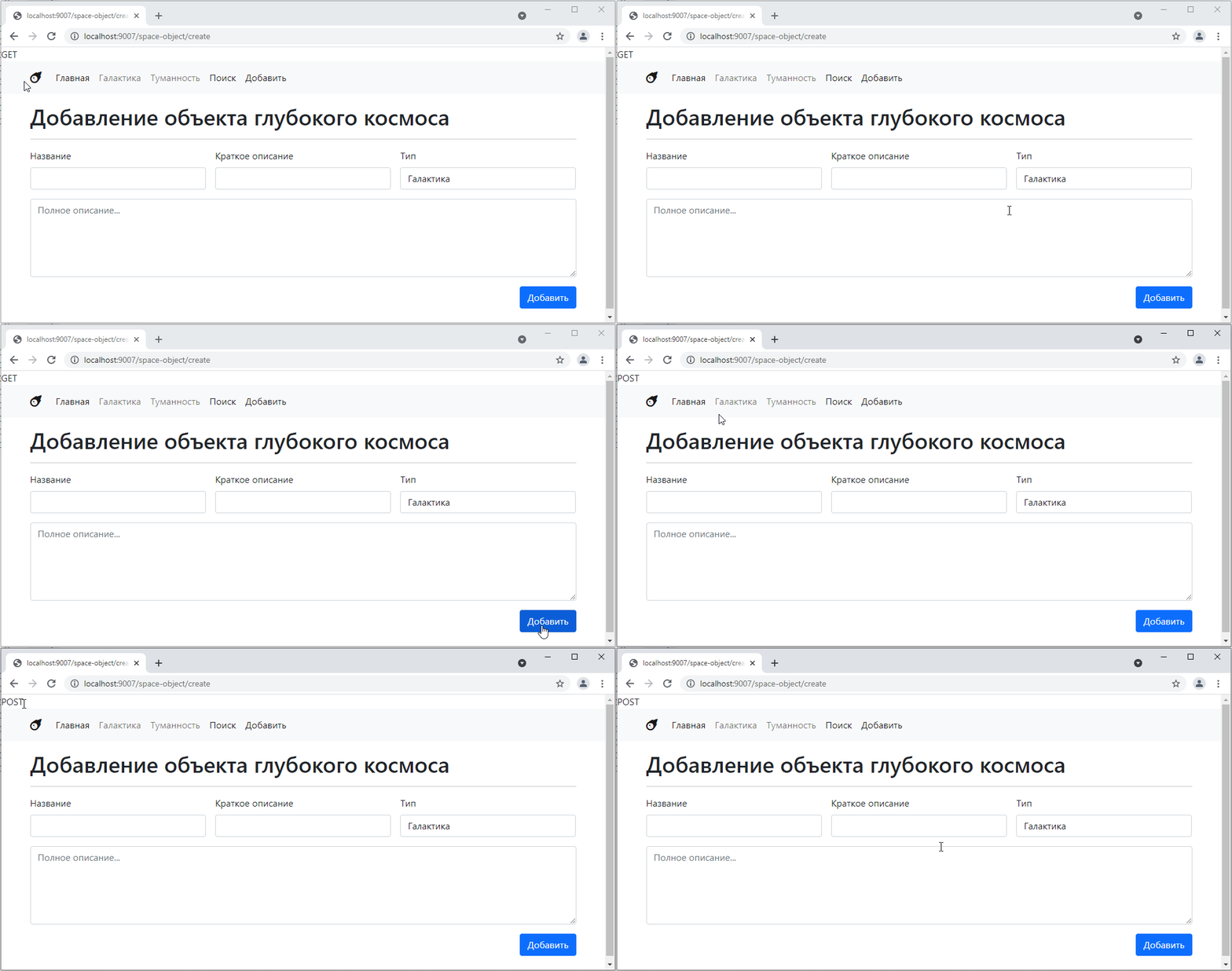
As we can see, the same page simply opens.
But let’s say I want to display some additional message, such as “object created.”
Then I need to be able to modify the controller context from the post method and pass it to get.
To do this, let’s tweak BaseController a little:
abstract class BaseController {
    // ...

    public function process_response() {
        $method = $_SERVER["REQUEST_METHOD"];
        $context = $this->getContext(); // call context here
        if ($method == "GET") {
            $this->get($context); // and here I just pass it inside
        } else if ($method == "POST") {
            $this->post($context); // and here
        }
    }

    public function get(array $context) {} // added as a parameter here
    public function post(array $context) {} // and here
}
Let’s tweak TwigBaseController.php:
class TwigBaseController extends BaseController {
    // ...

    public function get(array $context) { // added an argument to get
        echo $this->twig->render($this->template, $context); // and here we'll change getContext to just $context
    }
}
And let’s update Controller404.php
class Controller404 extends BaseSpaceTwigController {
    public $template = "404.twig";
    public $title = "Page not found";

    public function get(array $context)
    {
        http_response_code(404);
        parent::get($context);
    }
}
Now let’s go back to SpaceObjectCreateController and make the following changes:
class SpaceObjectCreateController extends BaseSpaceTwigController {
    public $template = "space_object_create.twig";

    public function get(array $context) // added a parameter
    {
        echo $_SERVER["REQUEST_METHOD"];

        parent::get($context); // passed the parameter
    }

    public function post(array $context) { // added a parameter
        $context["message"] = "You have successfully created an object"; // added a message

        $this->get($context); // passed the parameter
    }
}
and add the message output to the template
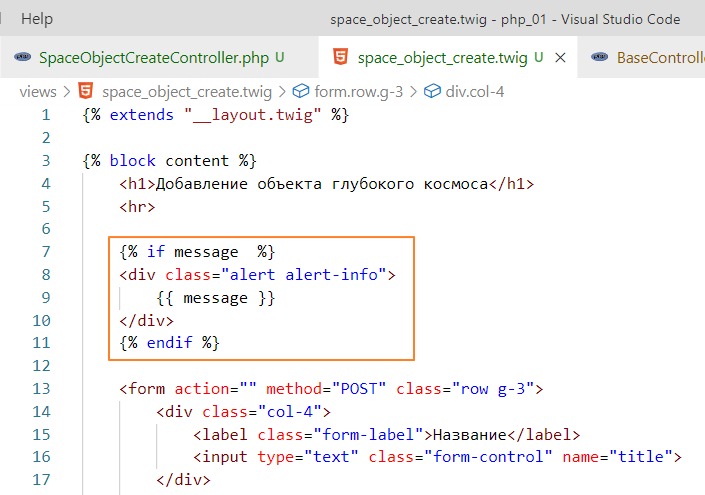
check:
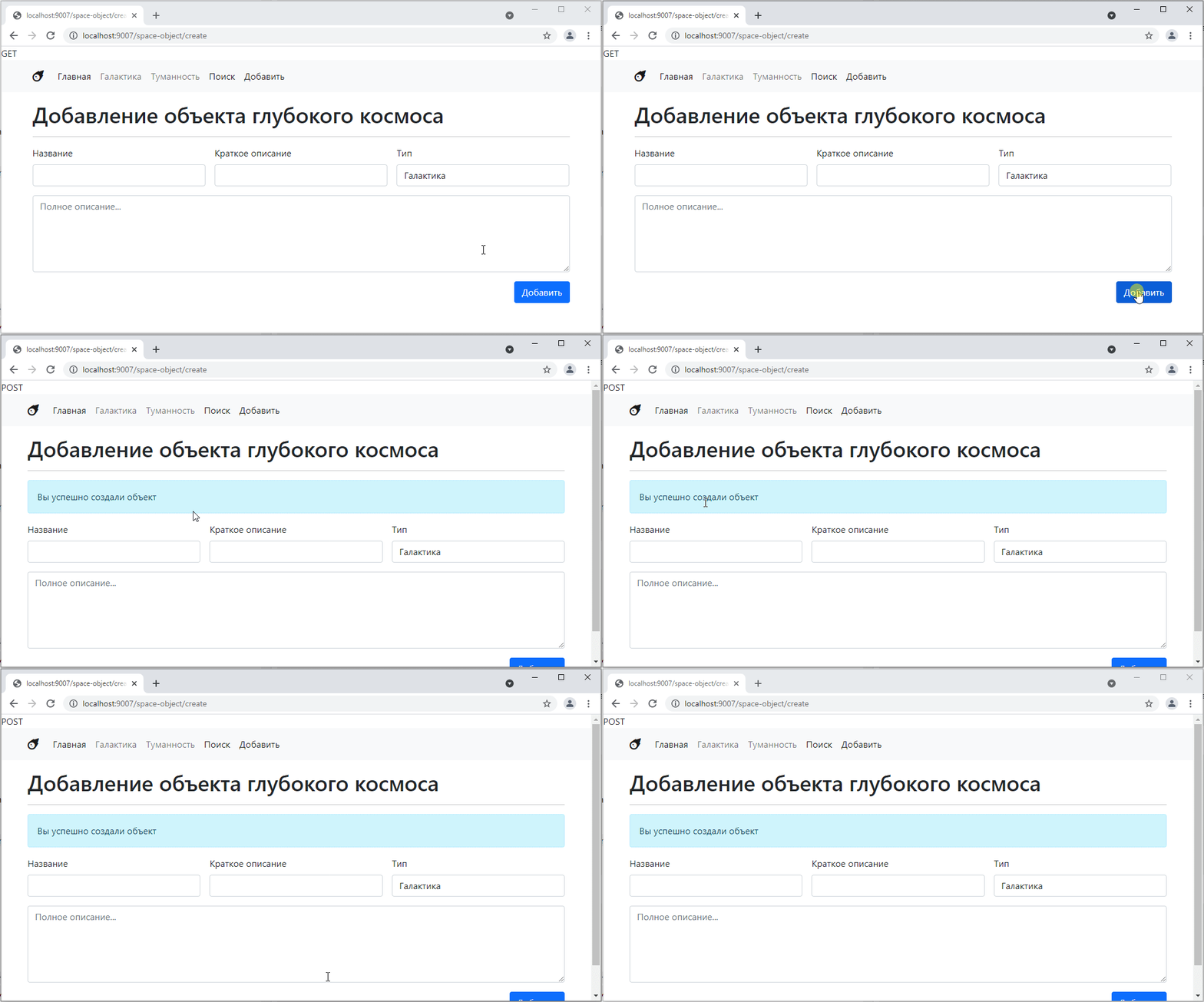
Of course, we haven’t added anything yet, but we’ve created the illusion
Finally, let’s add the object
To actually add the object, we need to read the parameters that were on the form. Similar to a GET request, we can access them via $_POST. To do this, we write:
    public function post(array $context) {
        // get the values of the fields from the form
        $title = $_POST["title"];
        $description = $_POST["description"];
        $type = $_POST["type"];
        $info = $_POST["info"];

        // create the query text
        $sql = <<<EOL
INSERT INTO space_objects(title, description, type, info, image)
VALUES(:title, :description, :type, :info, "")
EOL;

        // prepare the database query
        $query = $this->pdo->prepare($sql);
        // bind the parameters
        $query->bindValue("title", $title);
        $query->bindValue("description", $description);
        $query->bindValue("type", $type);
        $query->bindValue("info", $info);

        // execute the query
        $query->execute();

        $context["message"] = "You have successfully created an object";
        $context["id"] = $this->pdo->lastInsertId(); // get the id of the newly added object

        $this->get($context);
    }
And for complete happiness, let’s add a link to this object in the message.
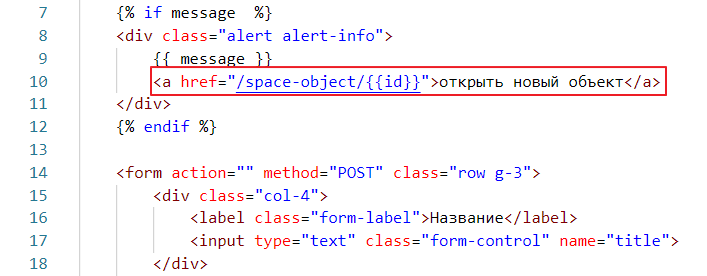
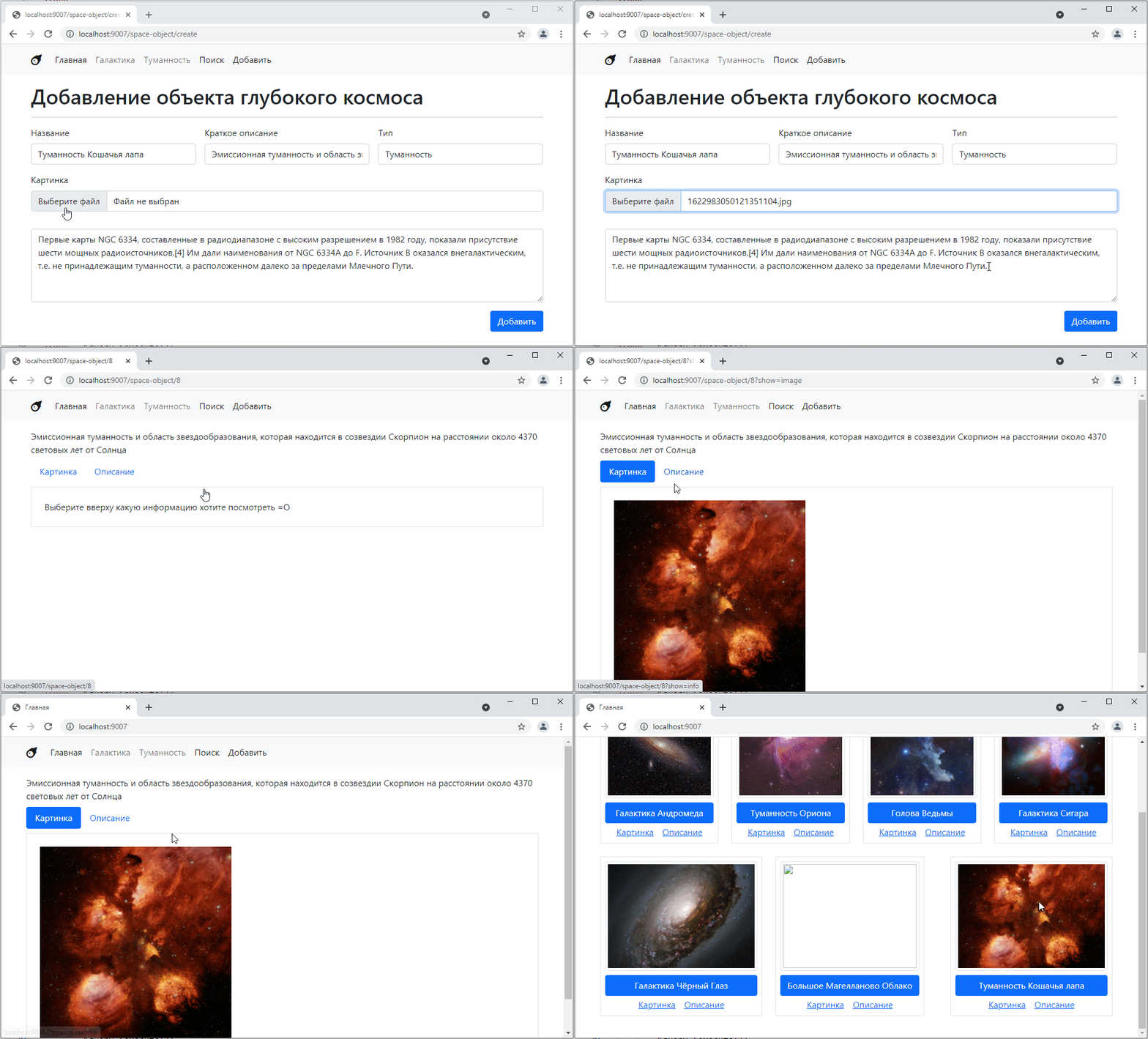
Testing:
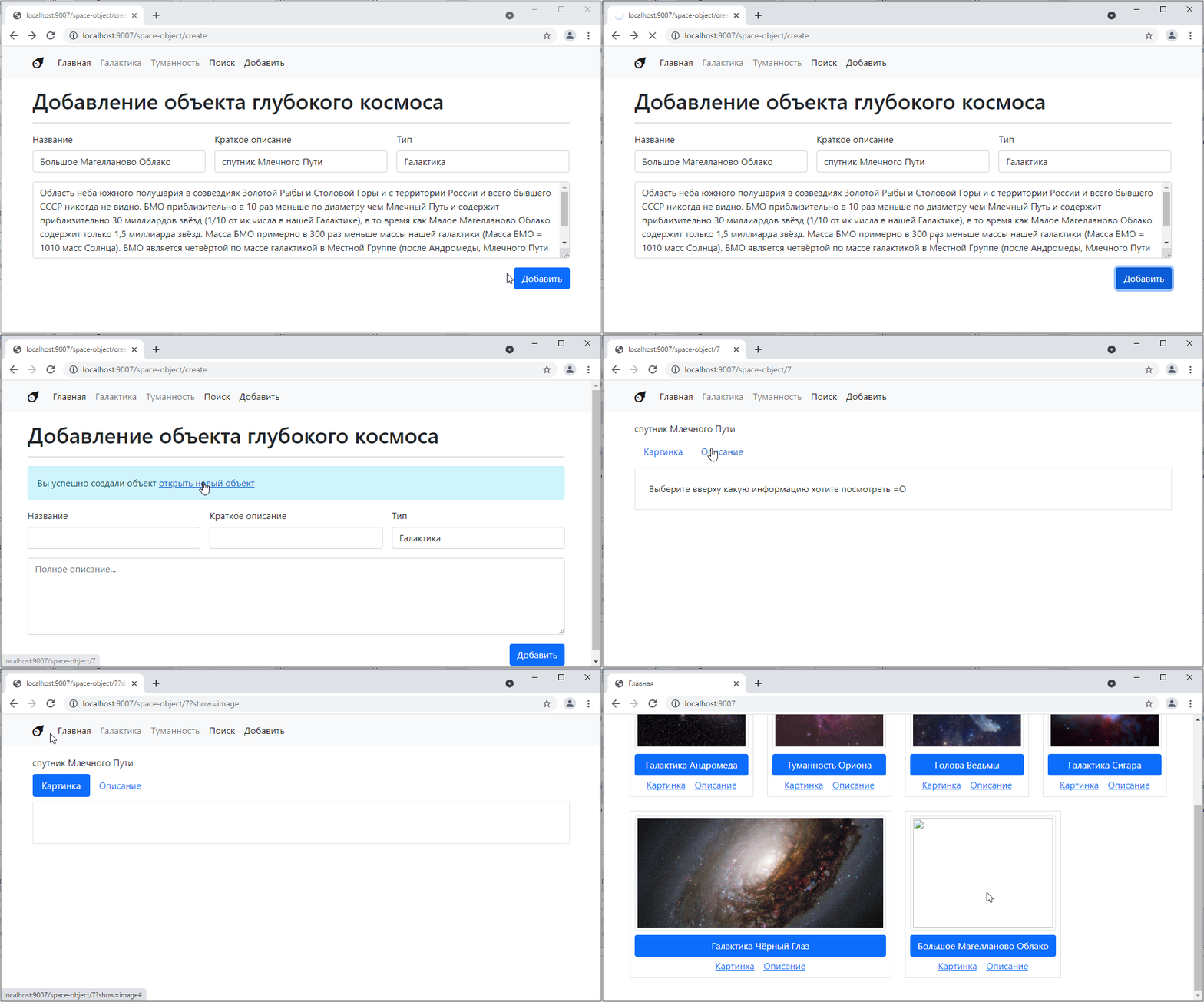
Awesome! =)
Adding an image
Now let’s link the image to the object. If the image is just a link to a picture on the internet, then it’s simple: take the text field and paste the text there.
But if we want to add the ability to select an image from the user’s computer, This is where things get complicated, because now we have to upload the image to our server ourselves (in our case, to the public folder) and generate a link to that image.
Let’s try to do that.
First, we need to add a special input for selecting a file [https://getbootstrap.com/docs/5.0/forms/form-control/#file-input] (https://getbootstrap.com/docs/5.0/forms/form-control/#file-input)
put it somewhere here
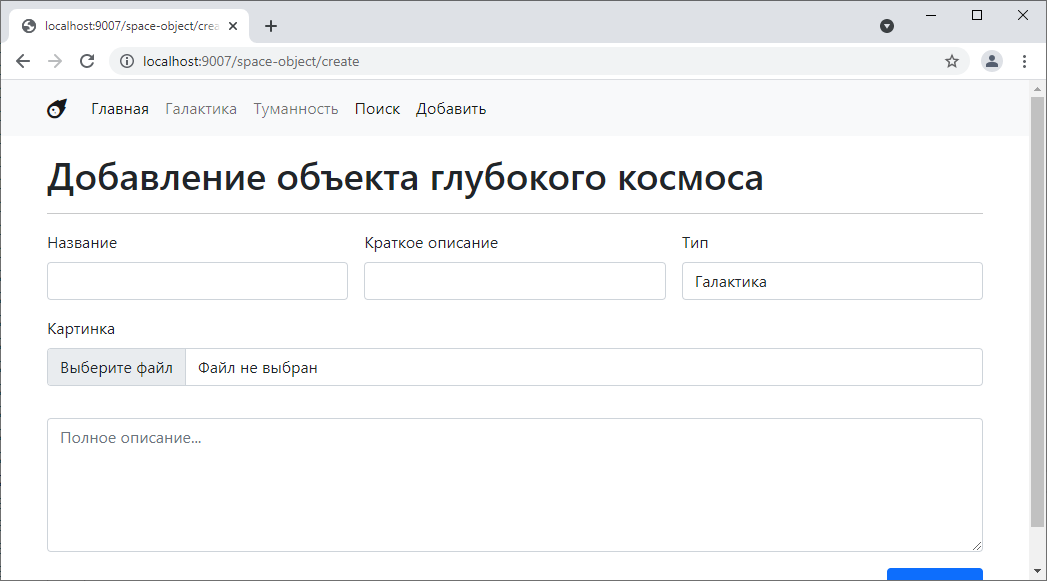
and name it image
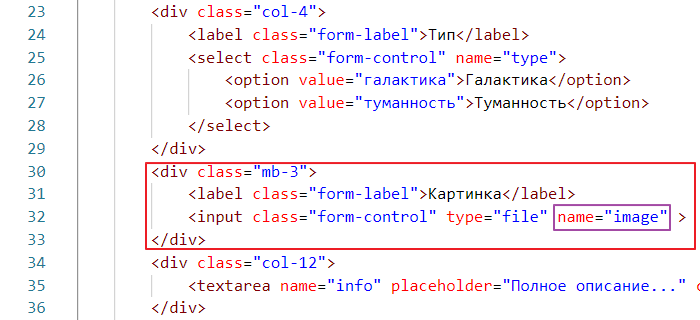
Now let’s see what happens when we make a post request with an image.
By the way, for obvious reasons, you cannot upload an image via a GET request, because an image can weigh several megabytes, and when it comes to files, even several gigabytes, and no address bar can handle such data. But this is just for reference…
So, let’s go to our SpaceObjectCreateController, disable adding records to the database there so as not to create unnecessary ones
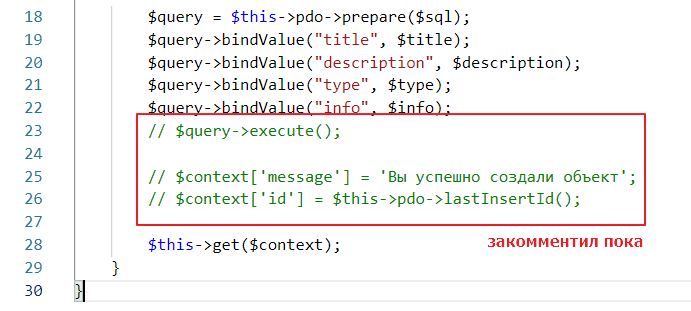
and add the output of data from $_POST
class SpaceObjectCreateController extends BaseSpaceTwigController {
    public $template = "space_object_create.twig";

    public function post(array $context) {
        $title = $_POST["title"];
        $description = $_POST["description"];
        $type = $_POST["type"];
        $info = $_POST["info"];

        // added
        echo "<pre>";
        print_r($_POST);
        echo "</pre>";

        // ...
testing
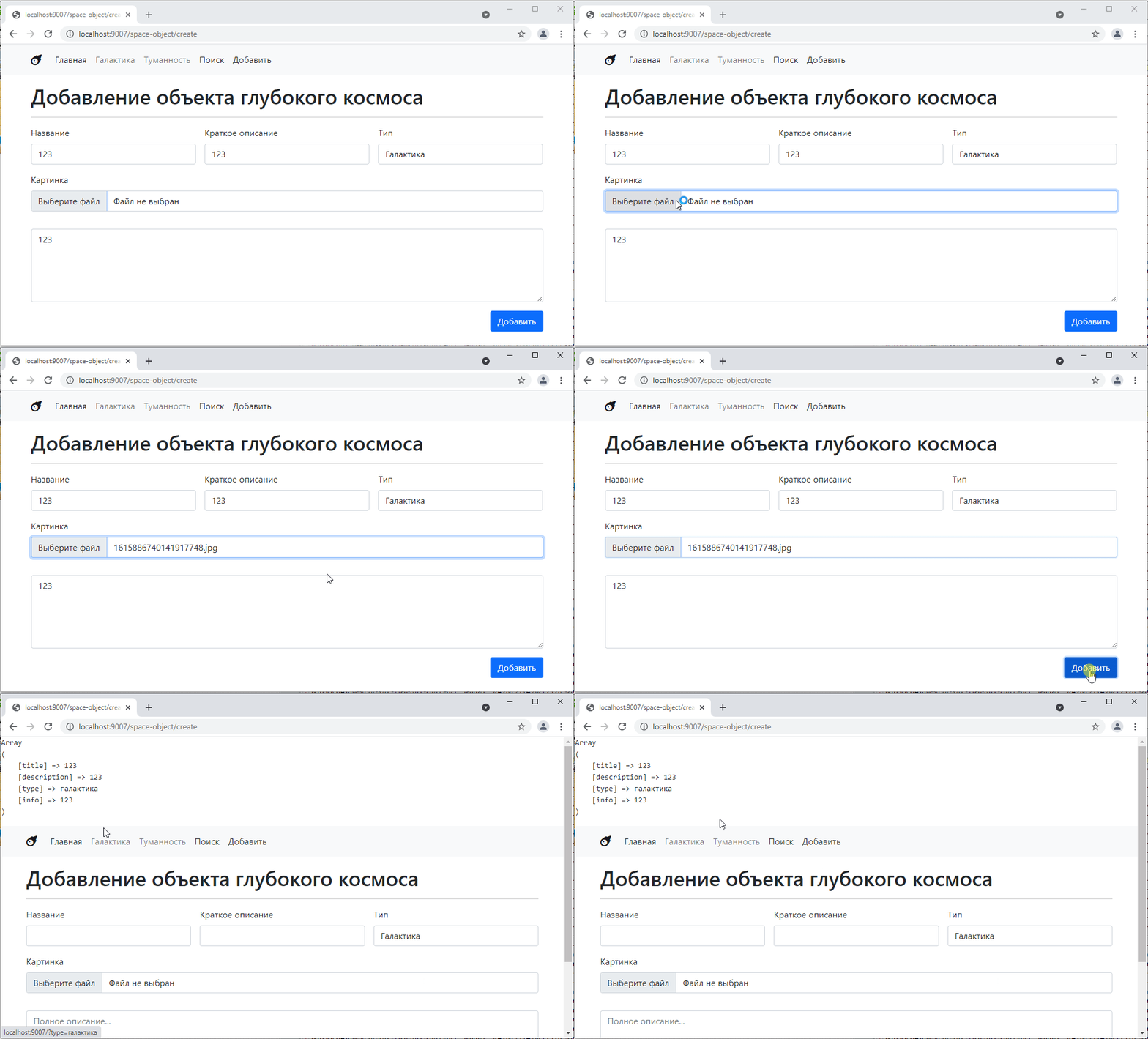
As you can see, there is no information about the image in the post request. Where can we get it?
The fact is that information about files is stored in another special object called $_FILES. Let’s try to output it
public function post(array $context) {
    $title = $_POST["title"];
    $description = $_POST["description"];
    $type = $_POST["type"];
    $info = $_POST["info"];

    echo "<pre>";
    // print_r($_POST);
    print_r($_FILES); // added
    echo "</pre>";
Let’s try again:
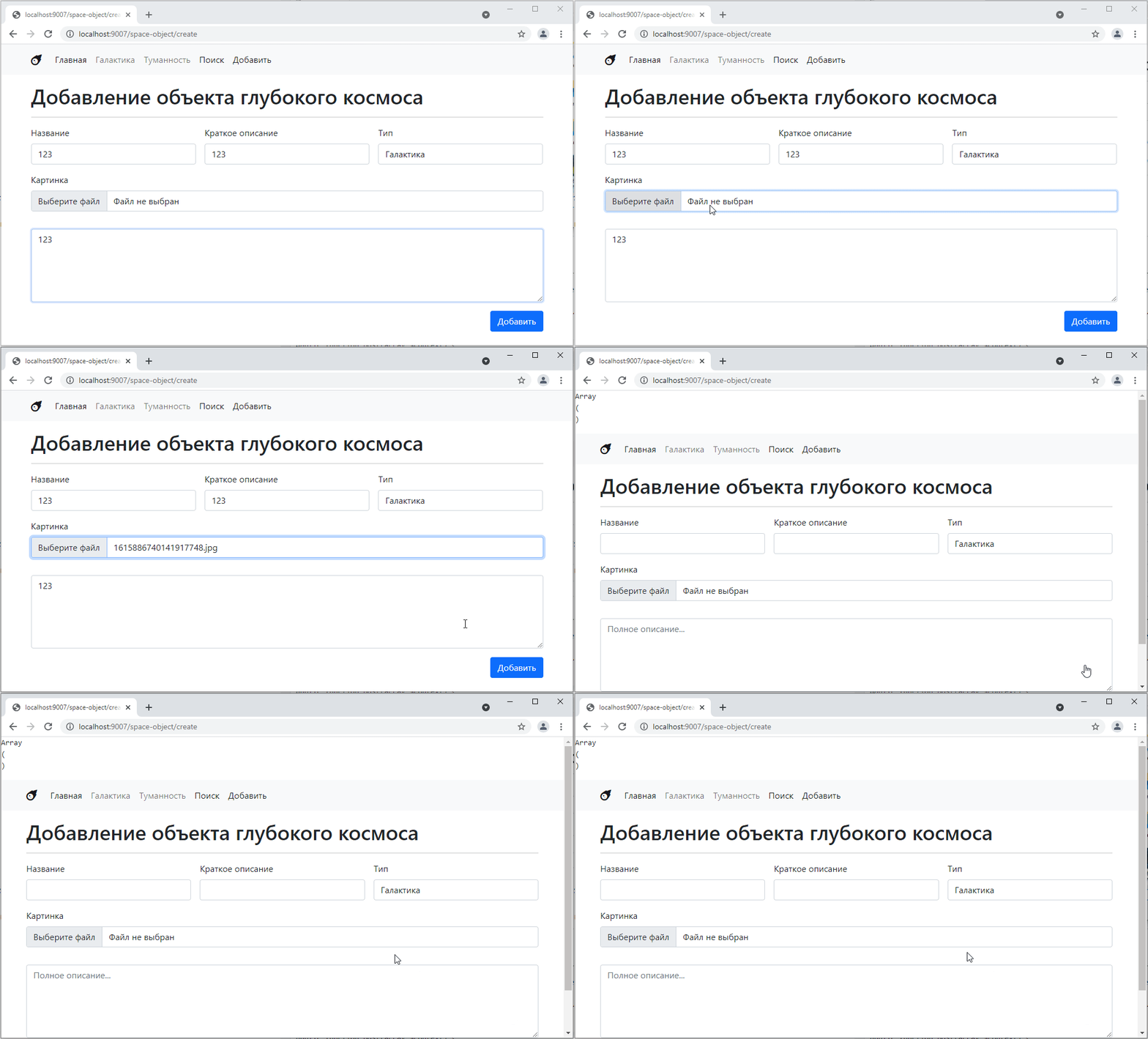
Hmm, now it outputs an empty array…
In general, there is another subtle point here: in order for the form to start sending file data to the server, you need to add another attribute to it, like this:

Run it again
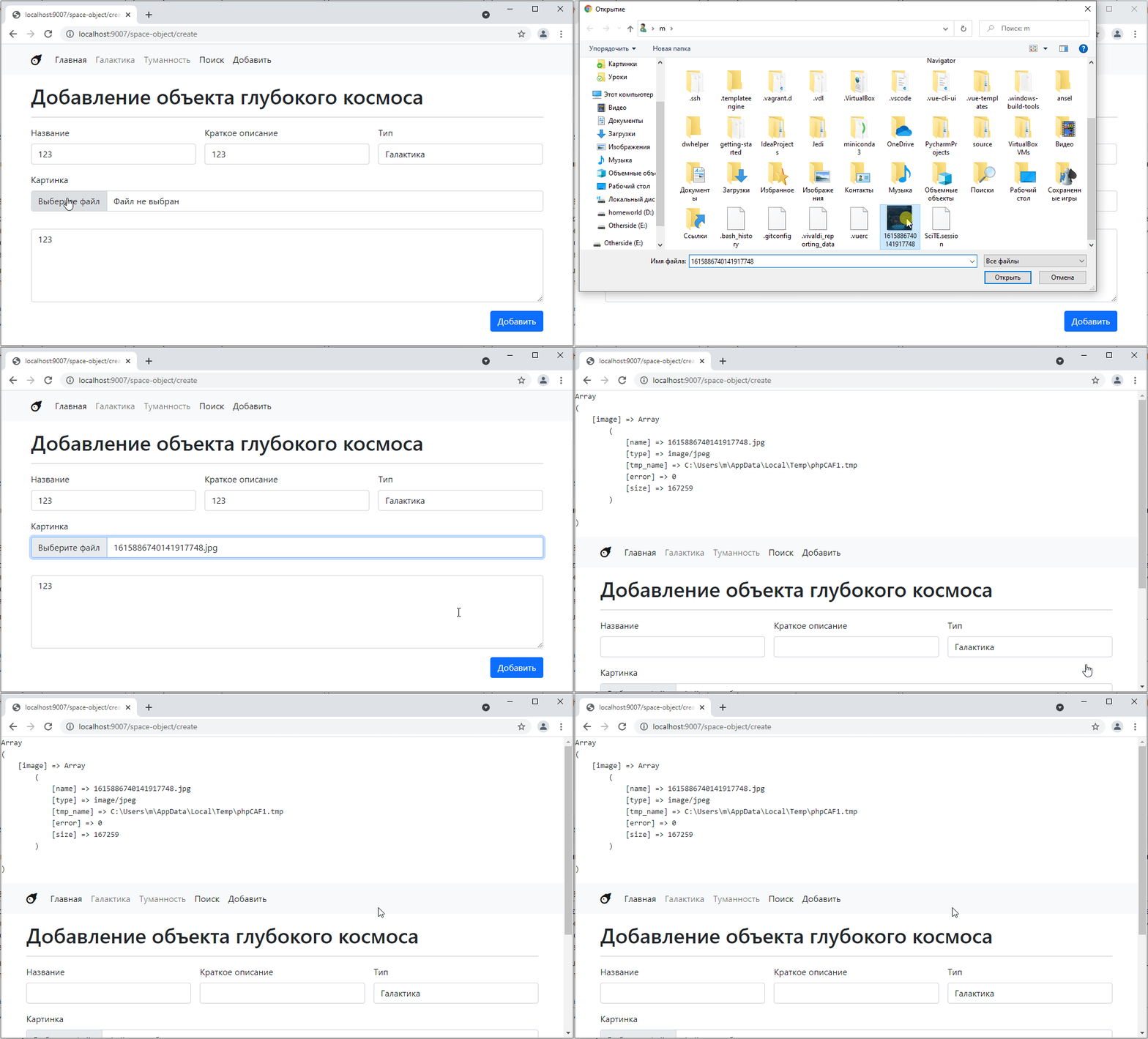
Oh, the data is sent =)
The data structure is simple: there is a key that corresponds to the value specified in name on the form, and information about the file, including its name, type, size, and the path where PHP saved the data during the request.
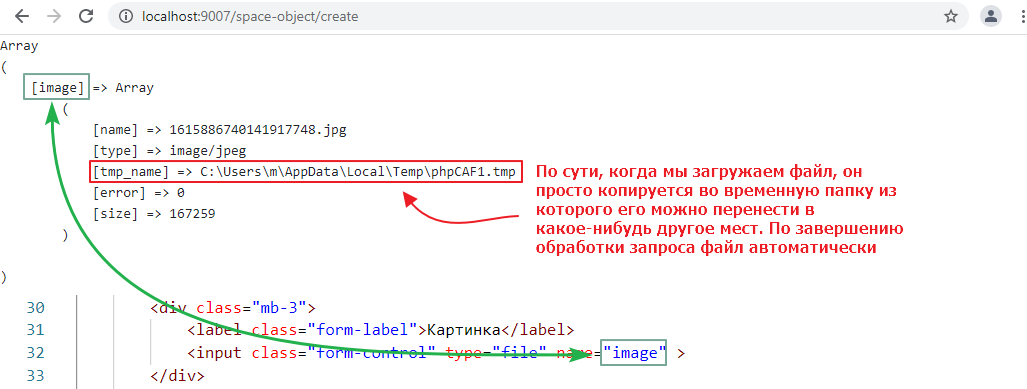
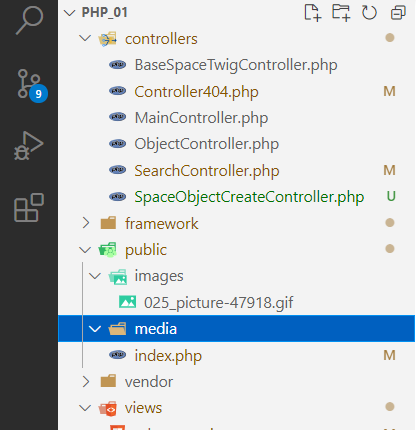
So, in order for the file to become part of our site, we need to copy it to the public folder. To do this, it is recommended to create a subfolder. It is usually called media, and if you use a version control system, this folder should be added to gitignore, since on any more or less active site it starts to weigh gigabytes of data after a couple of weeks.
Add
and now edit the controller so that it copies the file there:
class SpaceObjectCreateController extends BaseSpaceTwigController {
    public $template = "space_object_create.twig";

    public function post(array $context) {
        $title = $_POST["title"];
        $description = $_POST["description"];
        $type = $_POST["type"];
        $info = $_POST["info"];

        // extracted values from $_FILES
        $tmp_name = $_FILES["image"]["tmp_name"];
        $name =  $_FILES["image"]["name"];

        // use a function that checks
        // that the file was actually uploaded via a POST request
        // and if so, moves it to the location specified in the second argument
        move_uploaded_file($tmp_name, "../public/media/$name");
Let’s check that the file was actually uploaded:
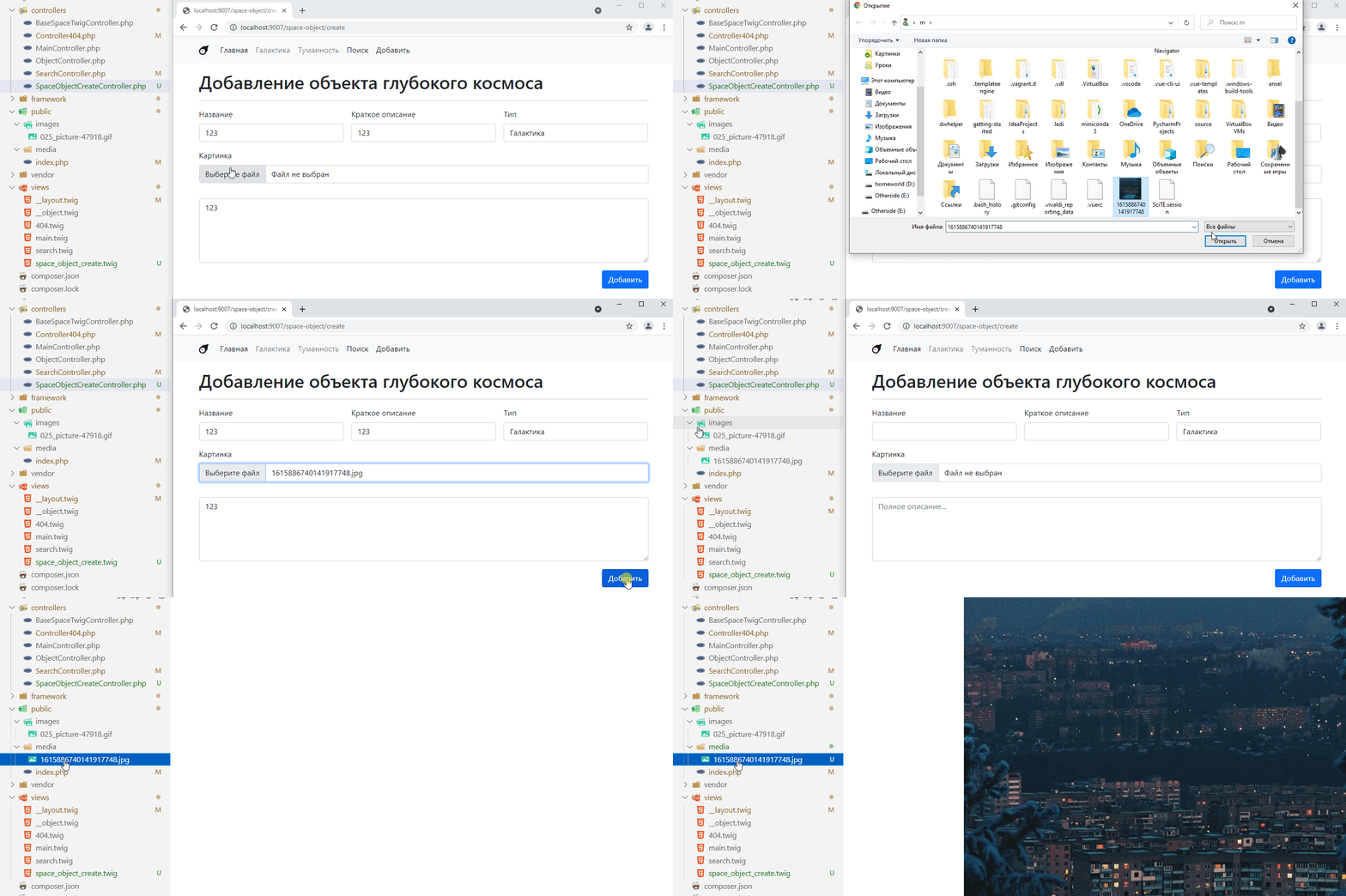
You can even open it directly via the link. My file is called 1615886740141917748.jpg, so the link will be [http://localhost:9007/media/1615886740141917748.jpg] (http://localhost:9007/media/1615886740141917748.jpg), here:
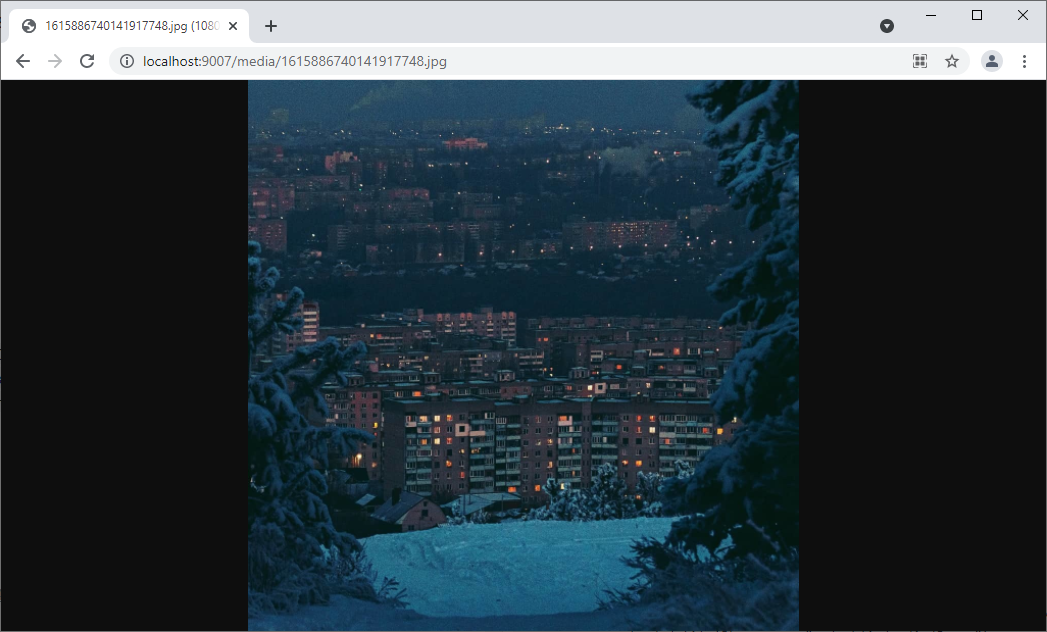
and now all that remains is to transfer this link, without the server address http://localhost:9007, to the database for this file.
    public function post(array $context) {
        // ...

        $tmp_name = $_FILES["image"]["tmp_name"];
        $name =  $_FILES["image"]["name"];
        move_uploaded_file($tmp_name, "../public/media/$name");
        $image_url = "/media/$name"; // generate a link without the server address

        $sql = <<<EOL
INSERT INTO space_objects(title, description, type, info, image)
VALUES(:title, :description, :type, :info, :image_url) -- pass the variable to the query
EOL;

        $query = $this->pdo->prepare($sql);
        $query->bindValue("title", $title);
        $query->bindValue("description", $description);
        $query->bindValue("type", $type);
        $query->bindValue("info", $info);
        $query->bindValue("image_url", $image_url); // bind the link value to the image_url variable
        $query->execute();

        // and then as usual
        $context["message"] = "You have successfully created an object";
        $context["id"] = $this->pdo->lastInsertId();

        $this->get($context);
    }
Let’s check: