For those on Windows / Here we set up Laragon for convenient PHP development
So, in order to understand how the web works, we will use PHP. Being a kind of pioneer in the development of the modern web, using it will make it easier to understand why the web became what it is today, in terms of the transition from layout to layout with programming elements, and then to a full-fledged web application with MVC and so on. It’s the perfect option.
To work with PHP, we will use Laragon. This is a special program that allows you to deploy a web application from any folder without the need for administrator rights, and also allows you to install various services such as MySQL, Nginx, PHP, etc. You can carry it on a flash drive. And unlike a virtual machine, it works very quickly and takes up very little space.
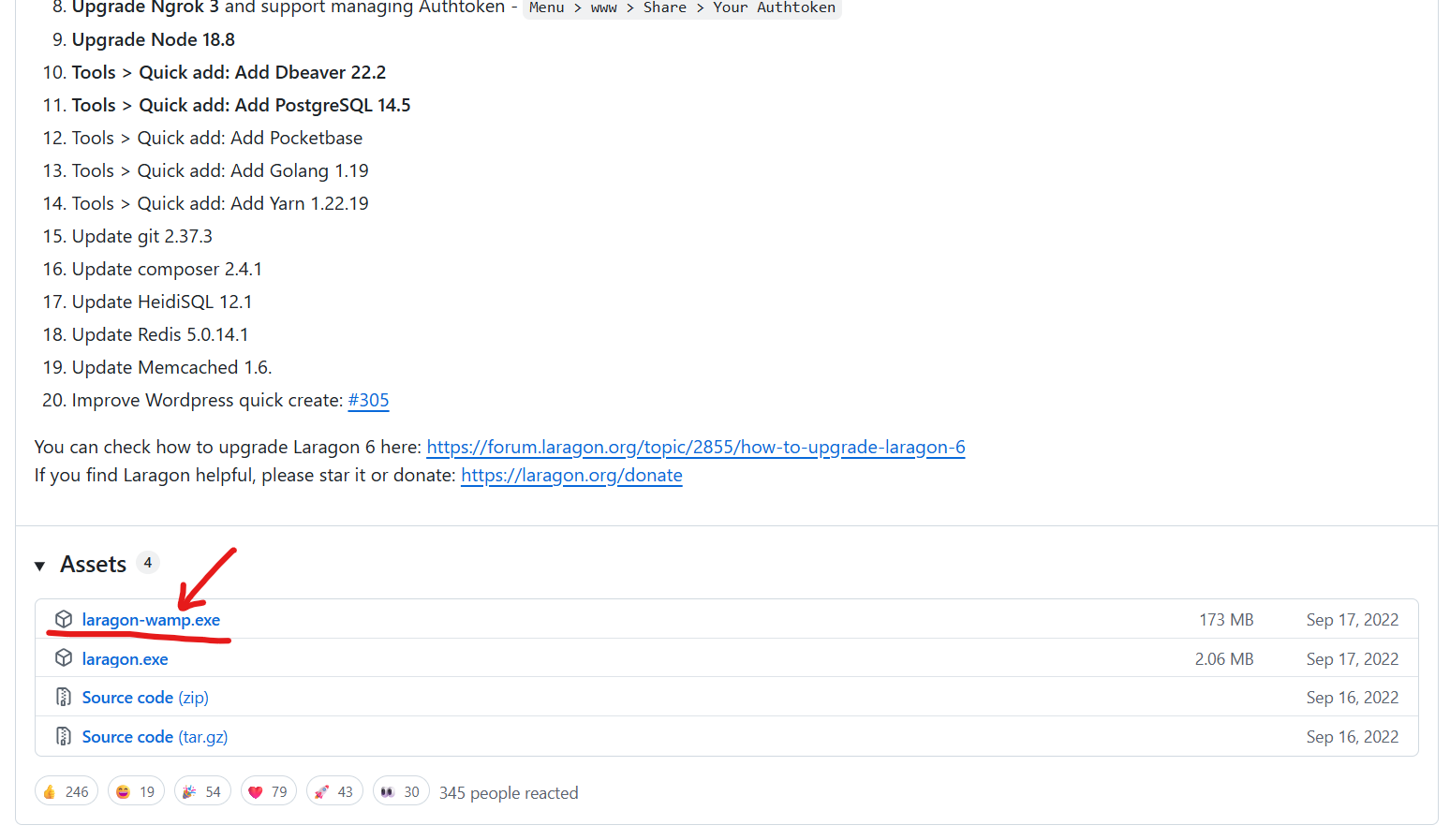
So, go to the website https://github.com/leokhoa/laragon/releases/tag/6.0.0 download it and install:
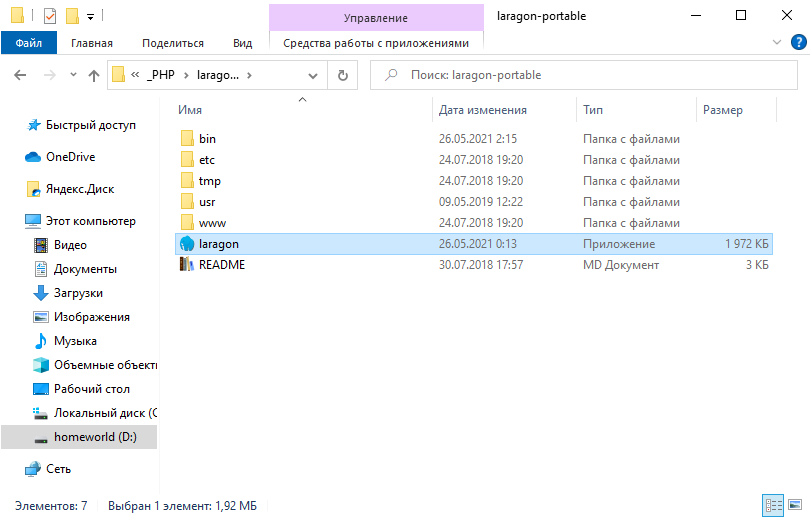
After installatiion, you will get this:
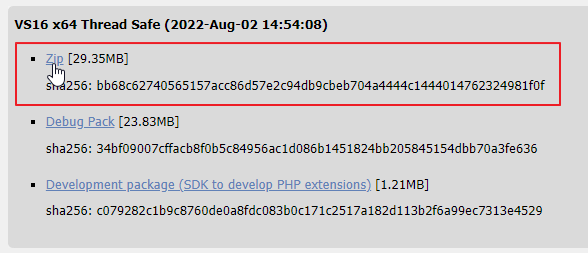
Now download PHP. Go to https://windows.php.net/download#php-8.1 and download:
Save it inside the laragon-portable folder in the \bin\php subfolder:
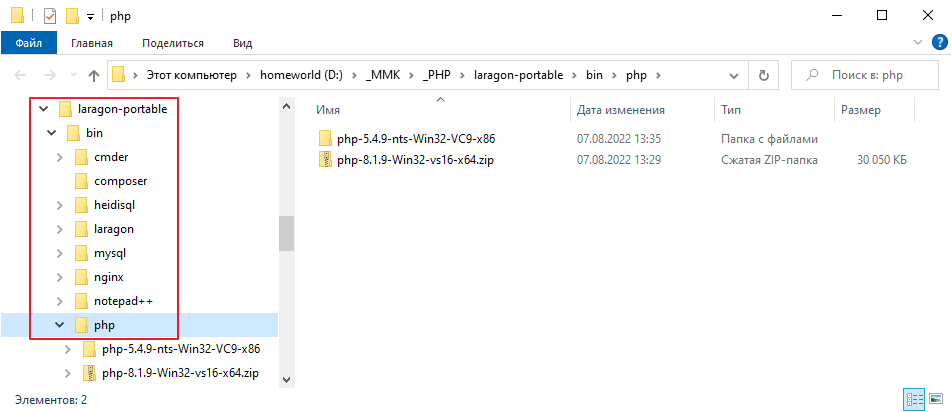
And unzip it too
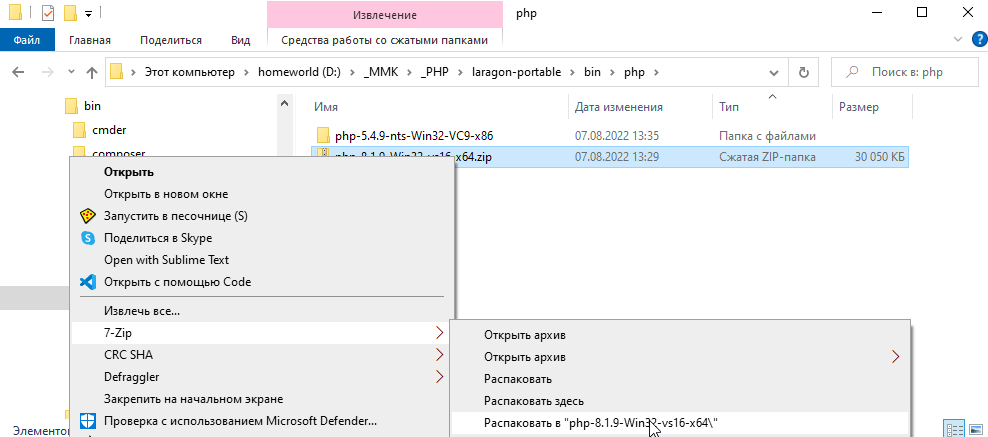
Then go to the Laragon settings and uncheck the box
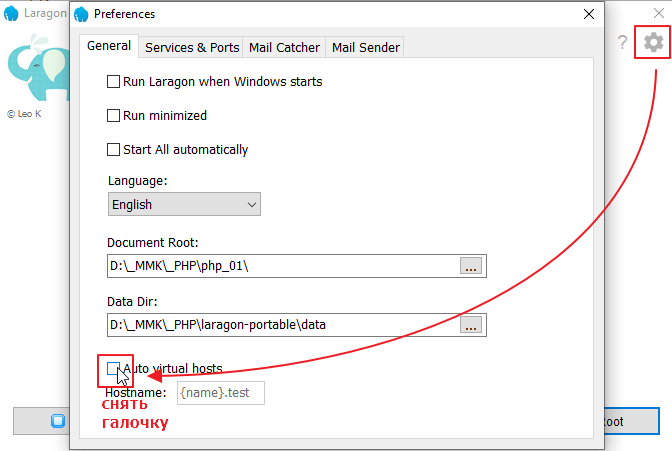
That’s it. We have collected the necessary files and can now try to start the server.
Run the laragon.exe file
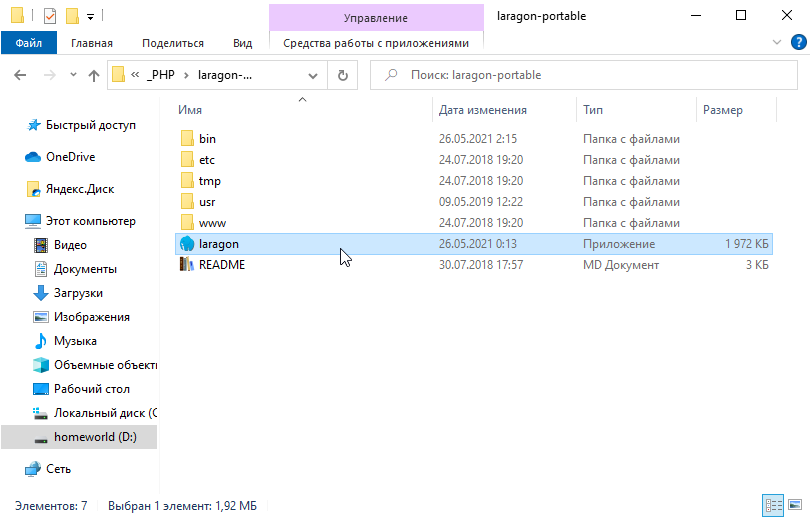
After launching, we will see this interface
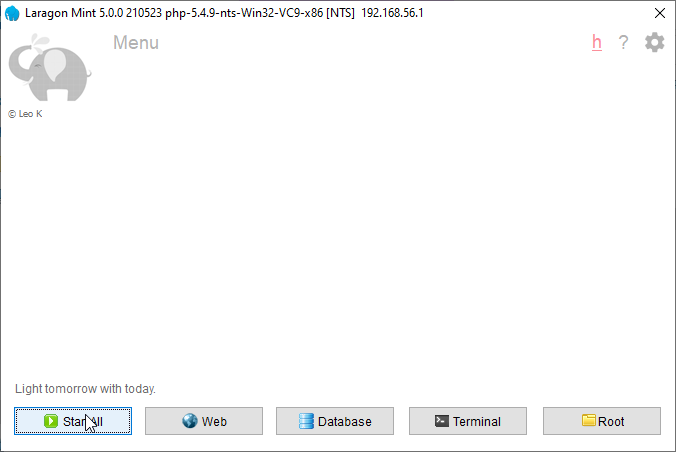
Click the Start All button. If you see any requests to open access, just skip them.
Now you can open the site in your browser at http://localhost
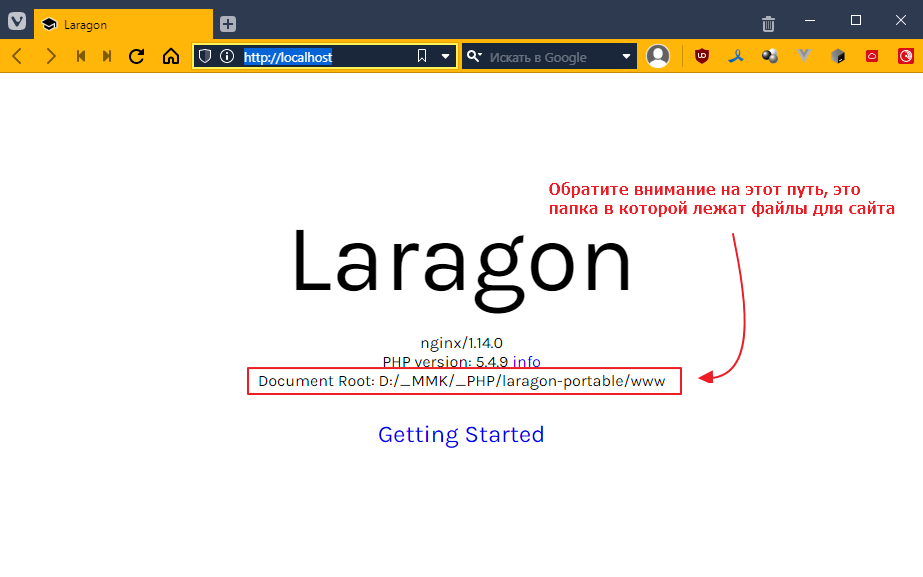
Let’s go in and see what’s in the folder:
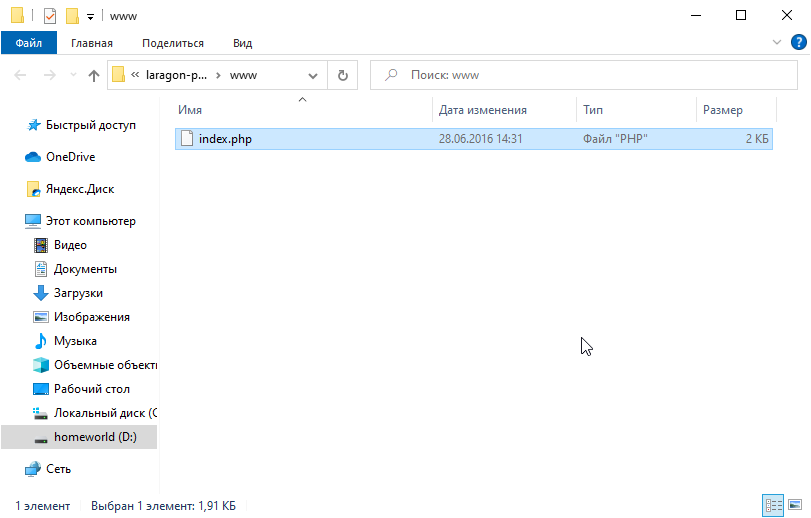
There is only one file there, and this file runs when we go to http://localhost.
In fact, the server is configured so that when we go to http://localhost, we are actually redirected to http://localhost/index.php.
Let’s take a look at what’s inside the file. Open index.php using Visual Studio Code.
At the very beginning of the file, we will see:
<?php
  if (!empty($_GET["q"])) {
    switch ($_GET["q"]) {
      case "info":
        phpinfo();
        exit;
      break;
    }
  }
?>
We won’t delve into how this works just yet. But without going into too much detail, the main difference between a php file and an html file is that we can insert php code directly into html, and it will be interpreted on the server side, with only plain html being sent to the client.
If we scroll further, we’ll see mostly plain html with small insertions of php code, for example:
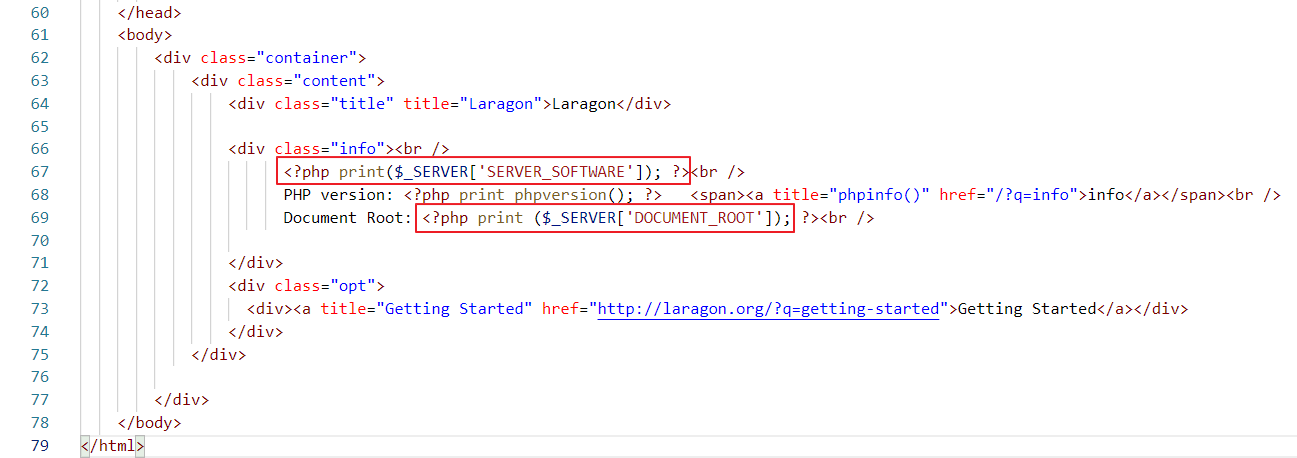
Here again there are PHP code inserts, but they are more local. For example, <?php print($_SERVER["SERVER_SOFTWARE"]); ?> is replaced with nginx/1.14.0
and <?php print ($_SERVER["DOCUMENT_ROOT"]); ?> is replaced with the path to the folder where the index.php file is located.
Let’s take a look at the html that comes from the server (press Ctrl+U in your browser):
<body>
    <div class="container">
        <div class="content">
            <div class="title" title="Laragon">Laragon</div>

            <div class="info"><br />
                  nginx/1.14.0<br />
                  PHP version: 5.4.9   <span><a title="phpinfo()" href="/?q=info">info</a></span><br />
                  Document Root: D:/_MMK/_PHP/laragon-portable/www<br />

            </div>
<div class="opt">
<div><a title="Getting Started" href="http://laragon.org/?q=getting-started">Getting Started</a></div>
</div>
</div>

</div>
</body>
That is, in html, all these <?php ... ?> disappear and are replaced with plain text.
Since it is not a fact that you will be sitting at your computer, and you don’t want to install Laragon 10 times. Let’s just create a separate folder for our project and work with it.
It’s better to carry the folder itself on a flash drive or upload it to Git and pull it from there. So, let’s create a folder
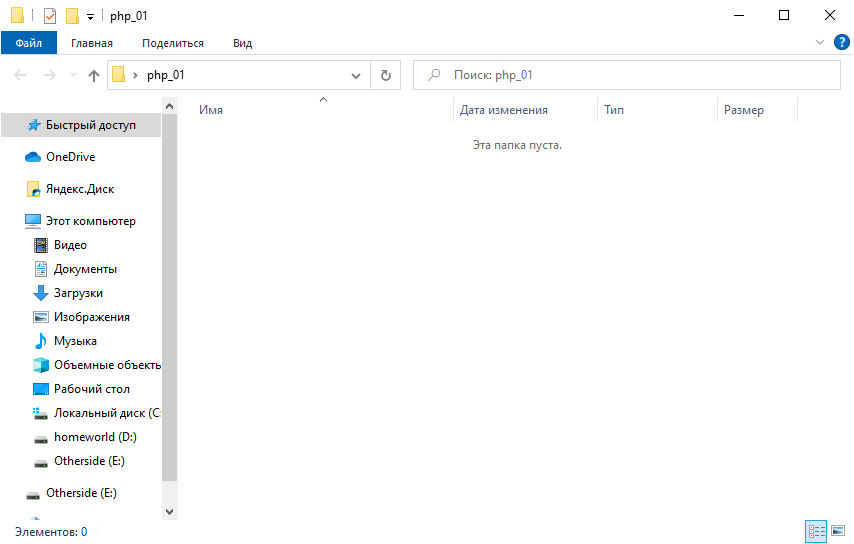
open it with Visual Studio Code, create a file called index.php in it, and put the following code in it
<!DOCTYPE html>
<html lang="en">
<head>
    <meta charset="UTF-8">
    <meta http-equiv="X-UA-Compatible" content="IE=edge">
    <meta name="viewport" content="width=device-width, initial-scale=1.0">
    <title>Document</title>
</head>
<body>
    <div>Hello everyone</div>
    <div>PHP version: <?php print phpversion(); ?></div>
</body>
</html>
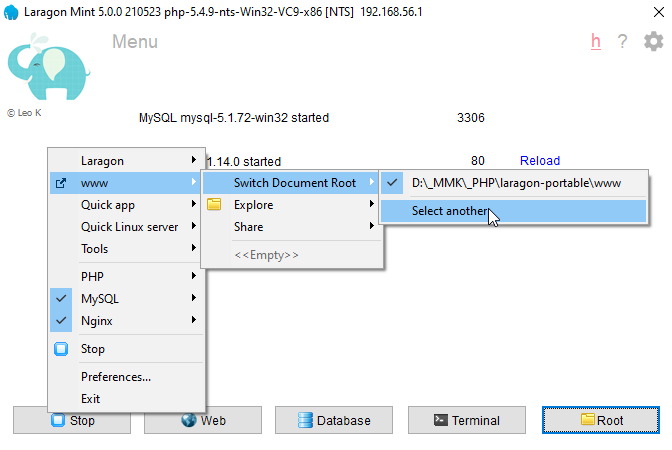
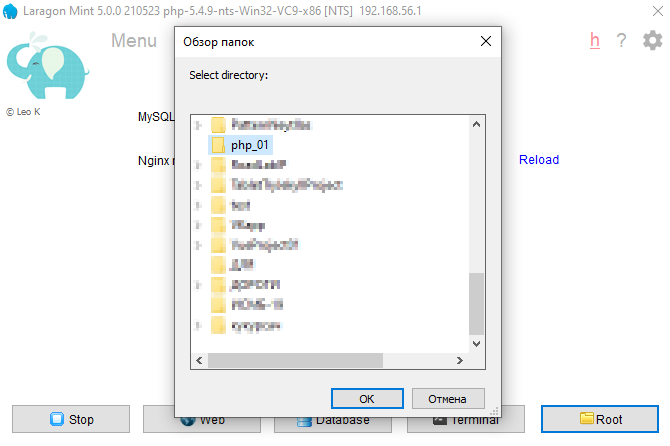
Now let’s configure Laragon to distribute this folder. To do this, right-click in the Laragon window and select Select another
and select
and now go to http://localhost, and check
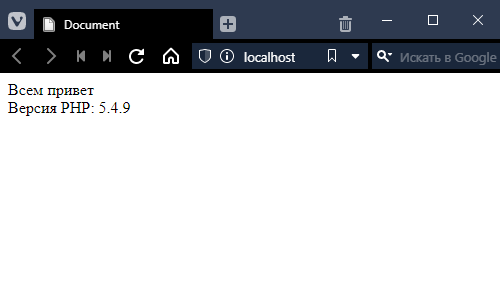
Hooray! =)
Now let’s switch the PHP version, since we downloaded it for a reason. Right-click in the Laragon window again.
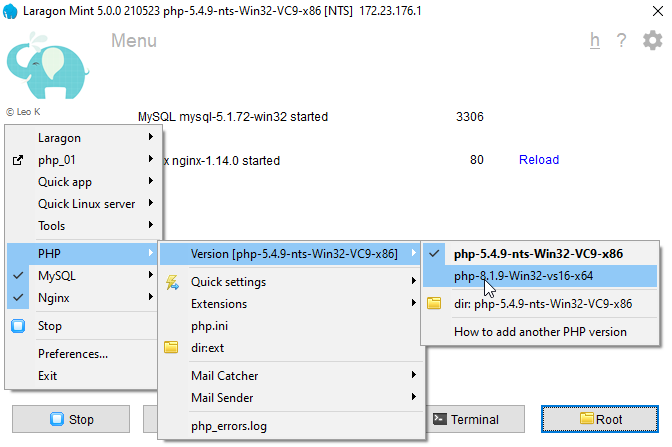
Reload the page.
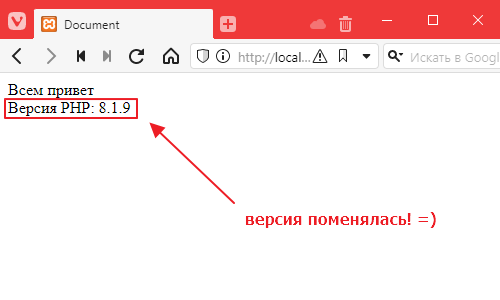
Great! Everything is set up, now we can study the subject in more depth! =)